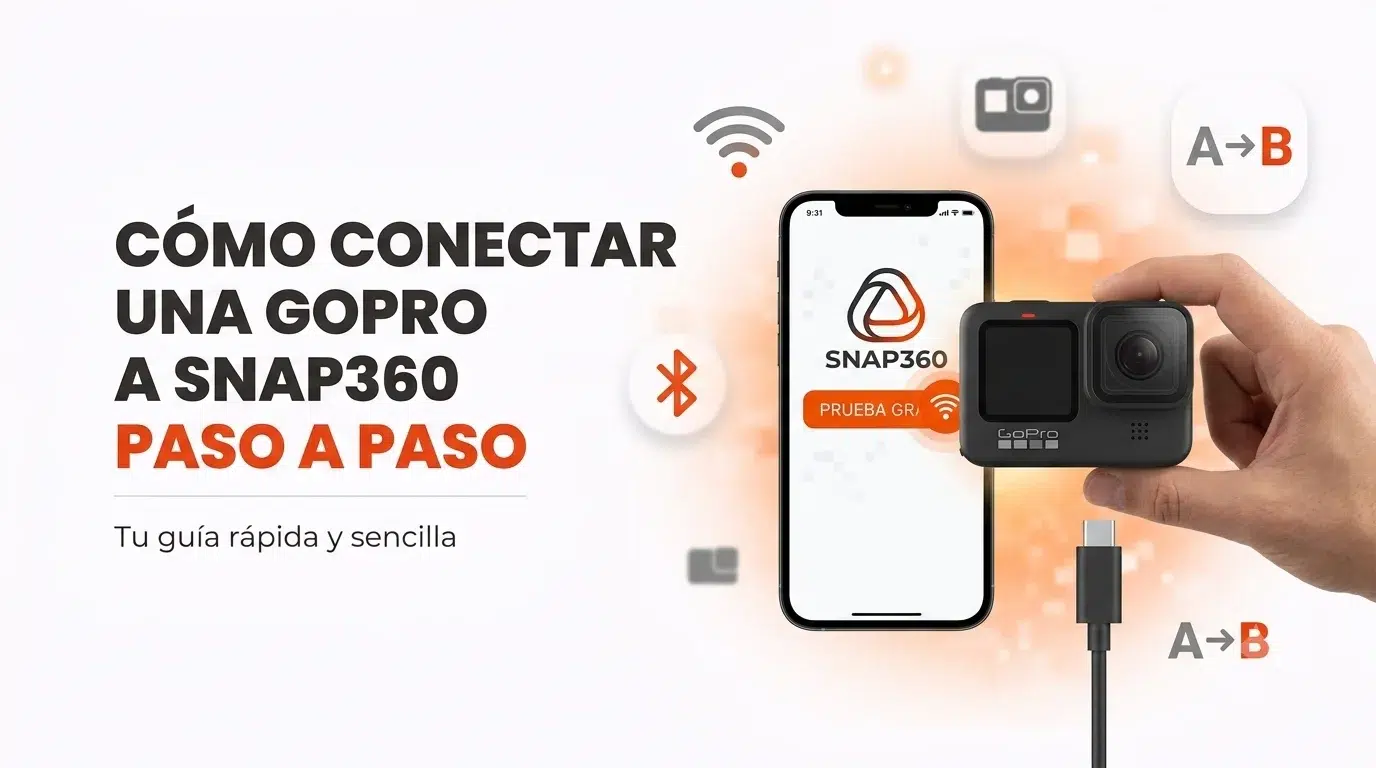
If you're looking for an app for photo booths with a GoPro, Snap360 is the one you need: you can now connect your GoPro camera straight to Snap360 and record your videos faster, more easily and with a more professional finish.
Hundreds of Snappers already run a GoPro photo booth at their events thanks to this integration: the app lets you control the camera from your phone, start and stop recording, transfer the videos to the phone automatically and process them inside Snap360 without doing any of it by hand.
In this guide we walk you through how to get your GoPro ready, which permissions to turn on, how to connect it over Wi-Fi or USB, and how to record 360 videos with a GoPro without a single error during your event.
Why Connect a GoPro to Your 360 Photo Booth?
Using a GoPro as the camera in your 360 photo booth has clear upsides for event businesses, weddings and brand activations:
Better image quality: bigger sensors and stabilization that improve any 360 video shot at an event.
Tough and reliable: GoPro cameras are built to handle movement, stage lighting and long working days.
Flexible mounting: it fits different 360 photo booth rigs, so you are not tied to your phone camera alone.
One single ecosystem: Snap360 controls the GoPro, edits and shares the content without ever leaving the app.
More and more 360 photo booth operators are looking for a GoPro compatible app. With Snap360 you get the GoPro photo booth app plus the whole editing and sharing flow in one place.
1. Before You Start
Before you connect your camera, make sure you meet these requirements.
Compatible GoPro Models 📷
Snap360 currently works with:
- GoPro Hero 10
- GoPro Hero 11
- GoPro Hero 11 Mini
- GoPro Hero 12
- GoPro Hero 13
⚠️Important: the GoPro Hero 9 may show up in the list of detected devices, but it cannot currently record from Snap360.
The Operating System You Need 📱
To use the integration properly you need:
- Android 7.0 or later
- iOS 13.6 or later
You also need to be signed in to the Snap360.
2. Permissions You Need on Your Phone ⚙
For the app to detect, connect to and control the GoPro, you have to accept the permissions Snap360 asks for.
The permissions that matter are:
- Bluetooth: needed to detect the camera.
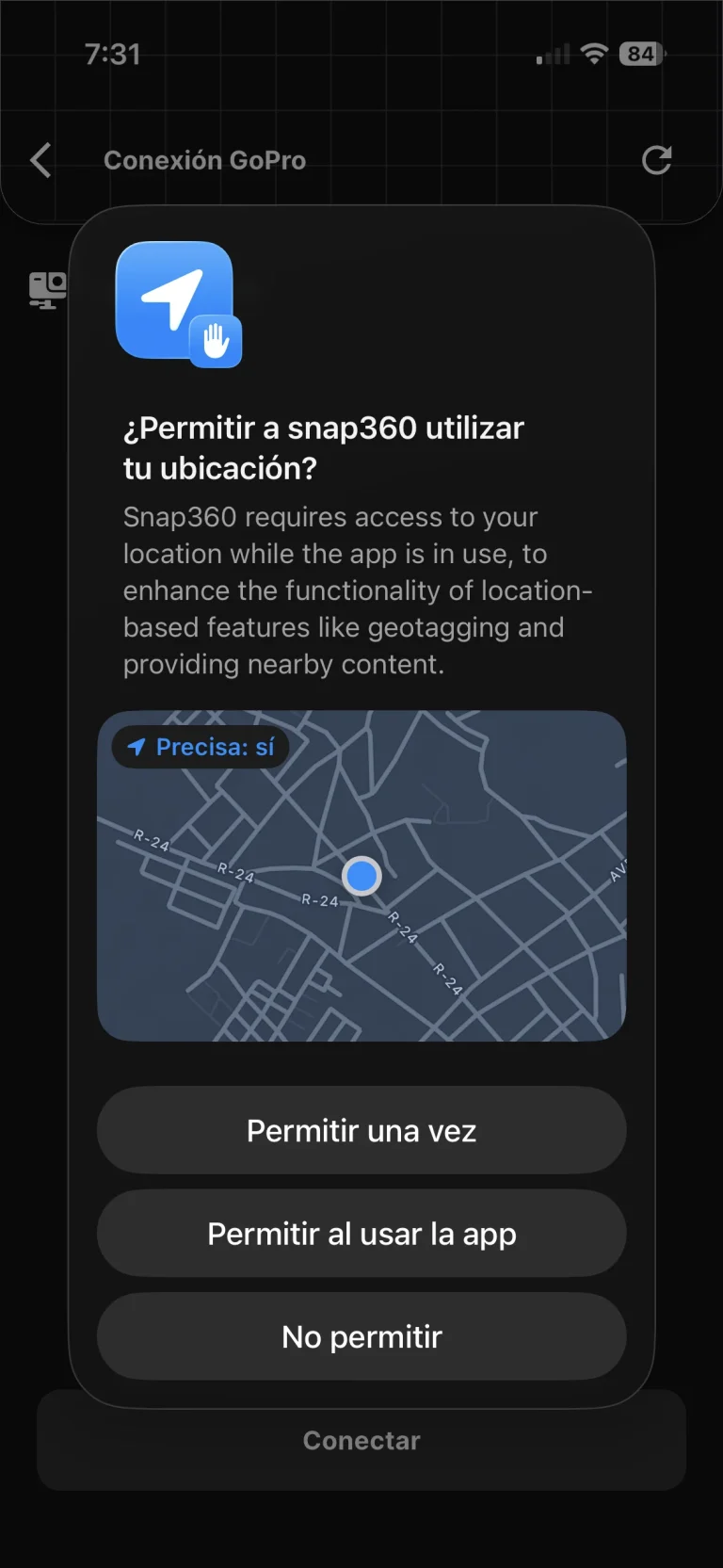
- Location or nearby devices: needed for both the Wi-Fi and the USB connection.
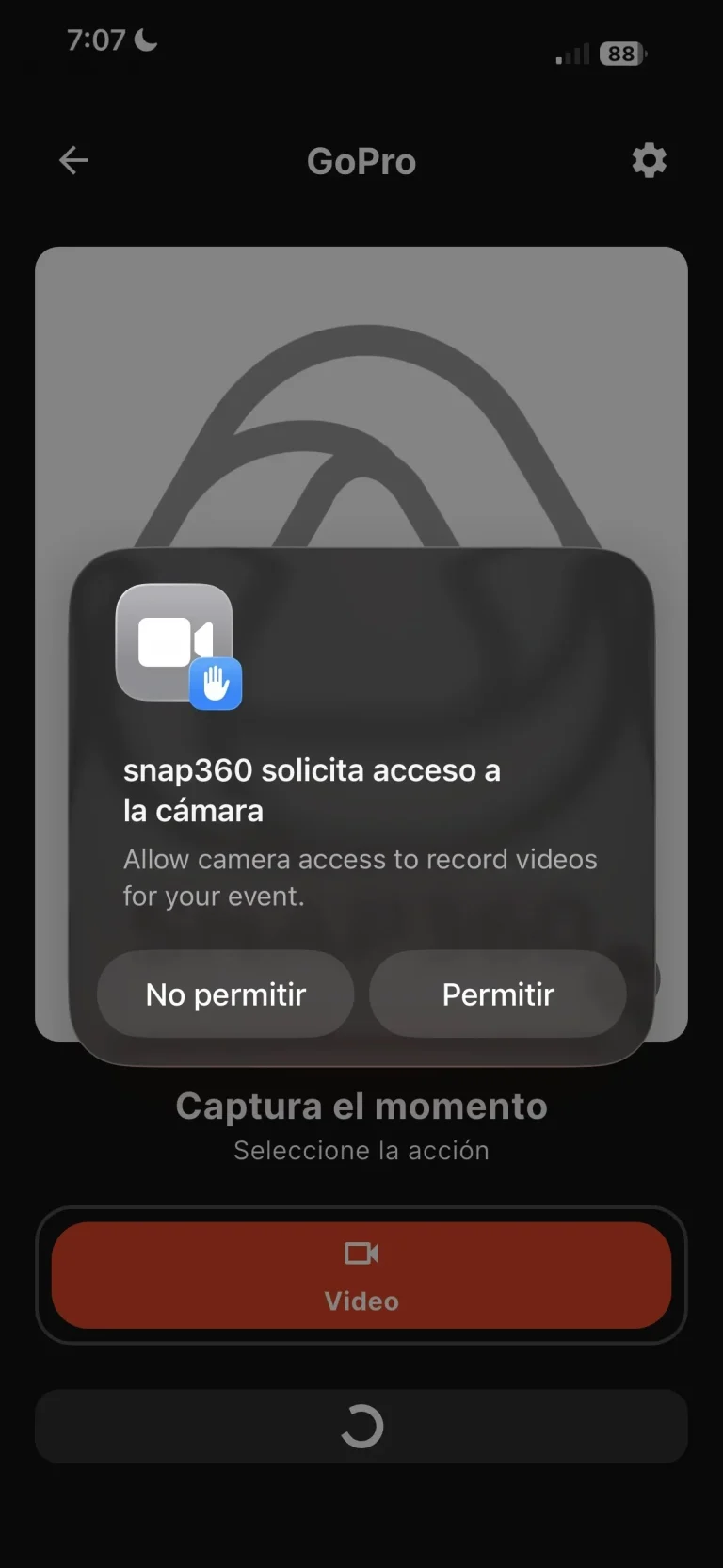
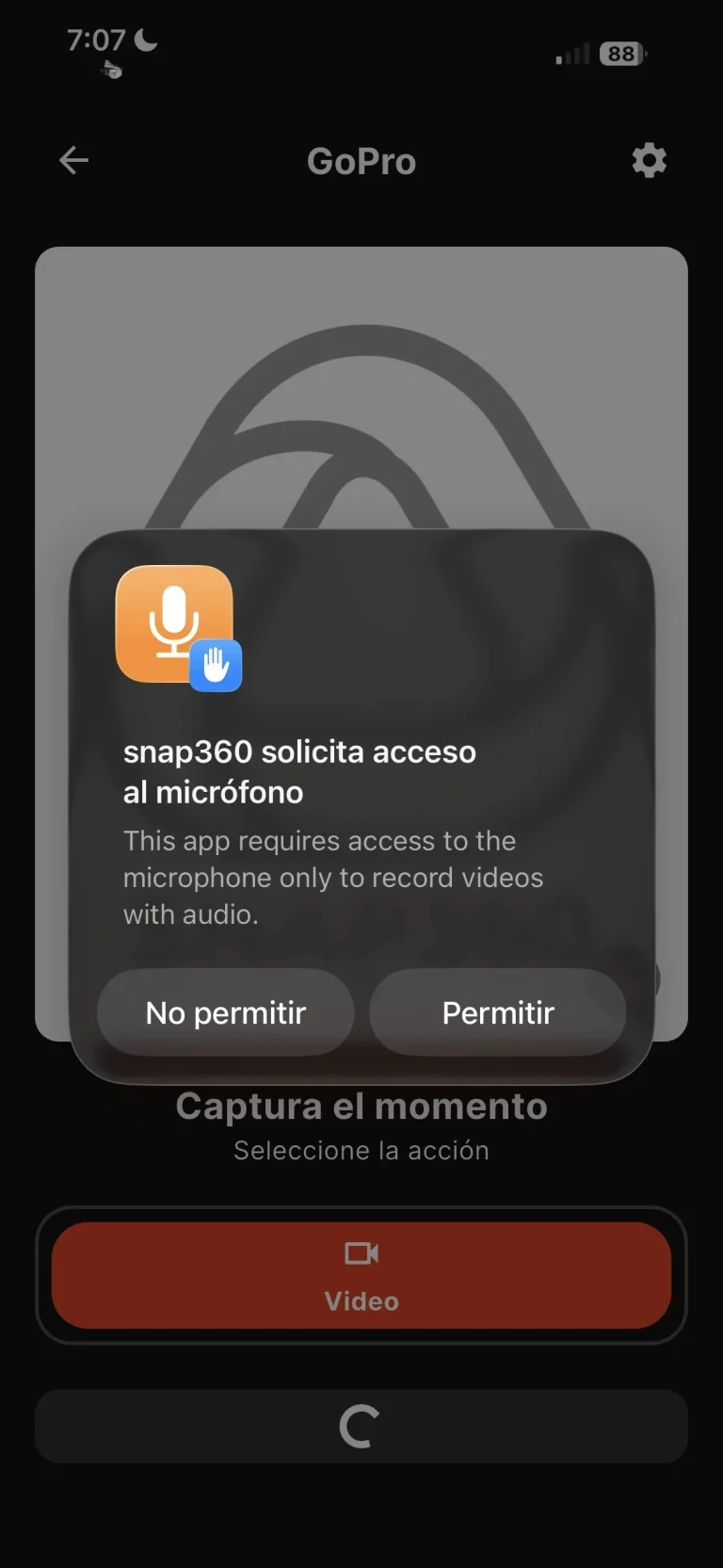
- Camera and microphone: needed to open the recording module.
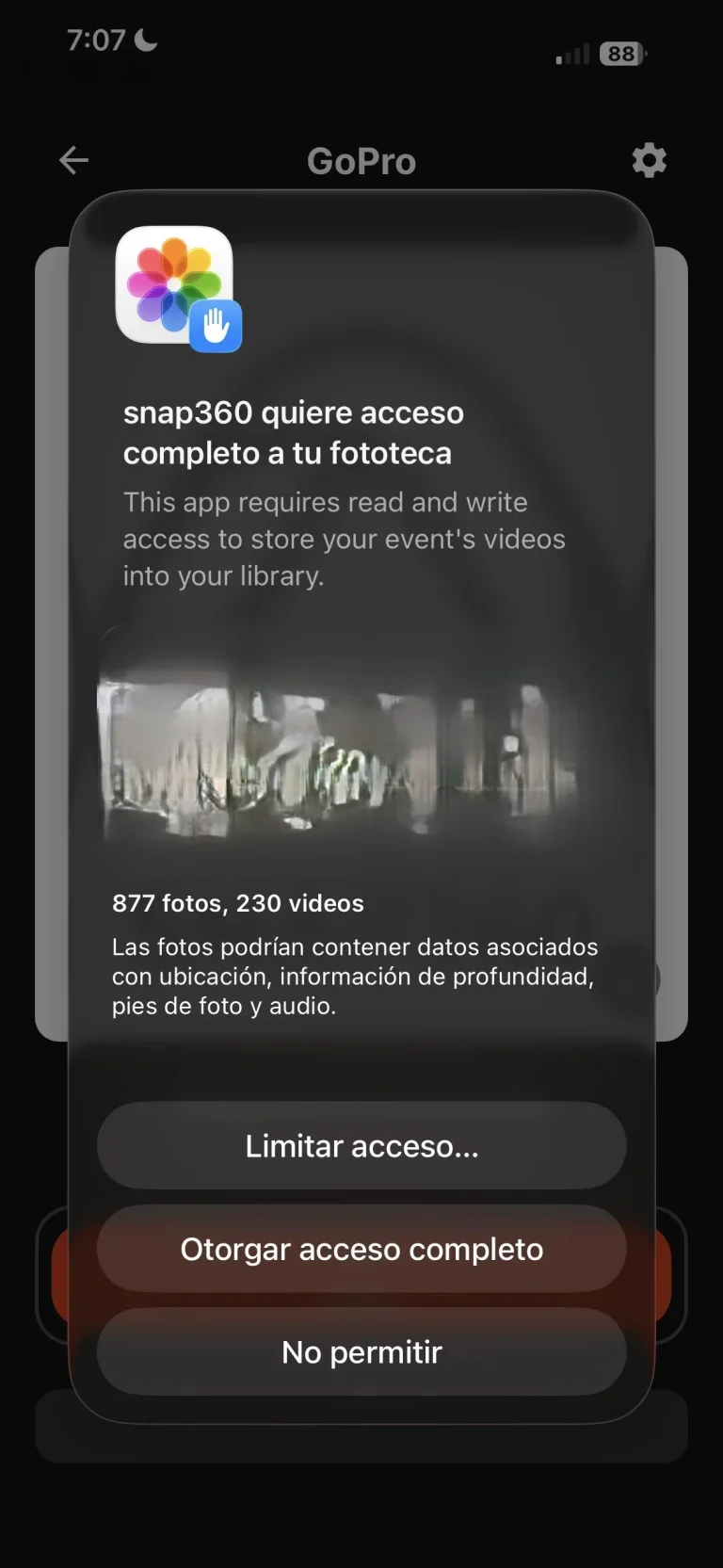
- Storage or photos: needed to save the transferred videos.
- Local network on iOS: required on iPhone and iPad.
⚠️On iOS, if you do not turn on the local network permission, the GoPro will not sync properly with your device.
You can check the permissions in your phone settings:
Settings > Apps > Snap360 > Permissions
3. Get the GoPro Ready Before Opening Snap360
Before you try to connect the camera, check these points:
- Check that the GoPro has enough battery.
- Make sure the SD card has free space.
- Turn on the wireless connections on the GoPro.
To turn on the wireless connections:
- On the GoPro home screen, swipe down.
- Go into Connections.
- Select Wireless Connections.
- Turn them on.
That is what lets Snap360 find the camera while it is connecting.
4. Important: Always Record in Portrait ⚠️
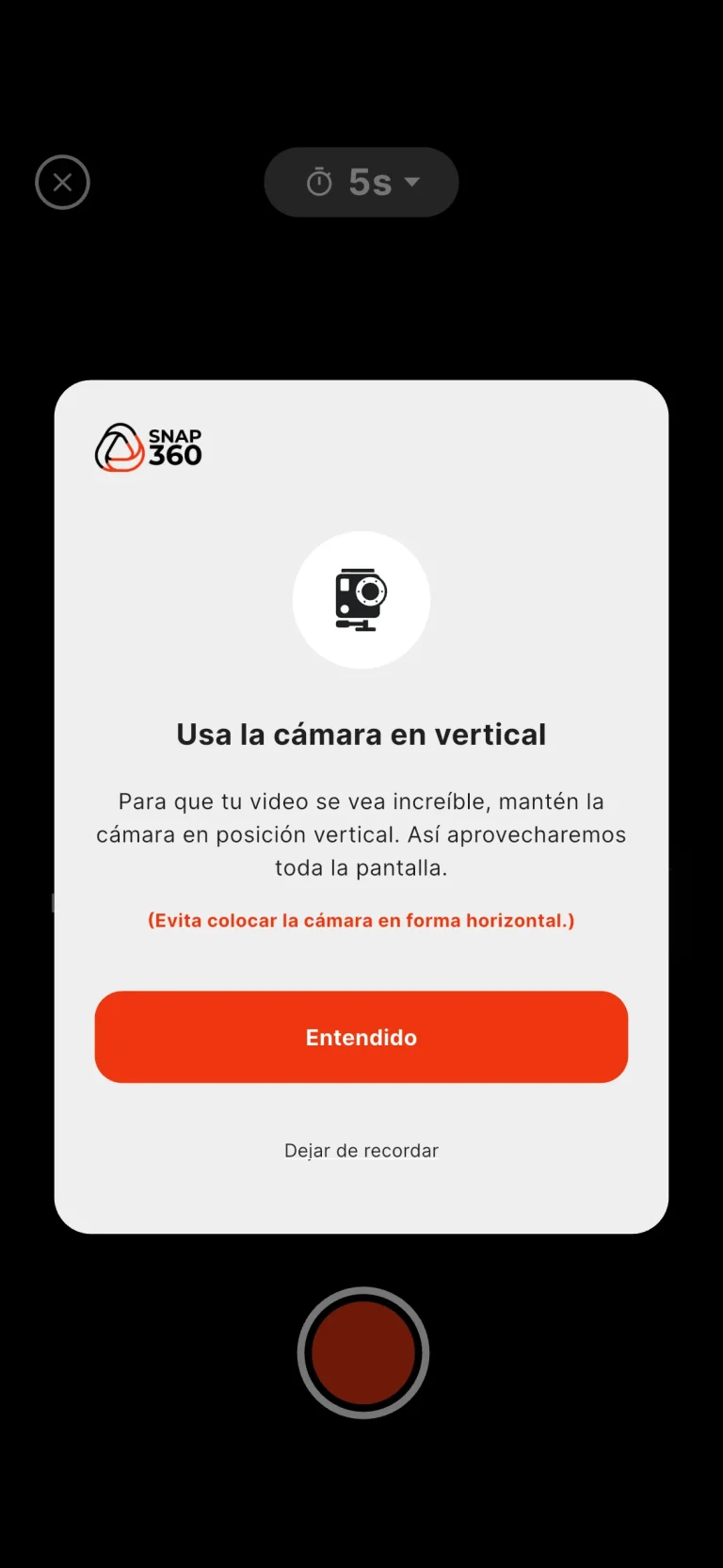
To use the GoPro with Snap360, you have to record in portrait format.
You can leave rotation unlocked on the phone, but when you record, both the phone and the camera have to be positioned vertically.
⚠️If the recording is not in portrait, Snap360 shows an error screen saying the video was not recorded correctly.
5. How to Connect the GoPro to Snap360
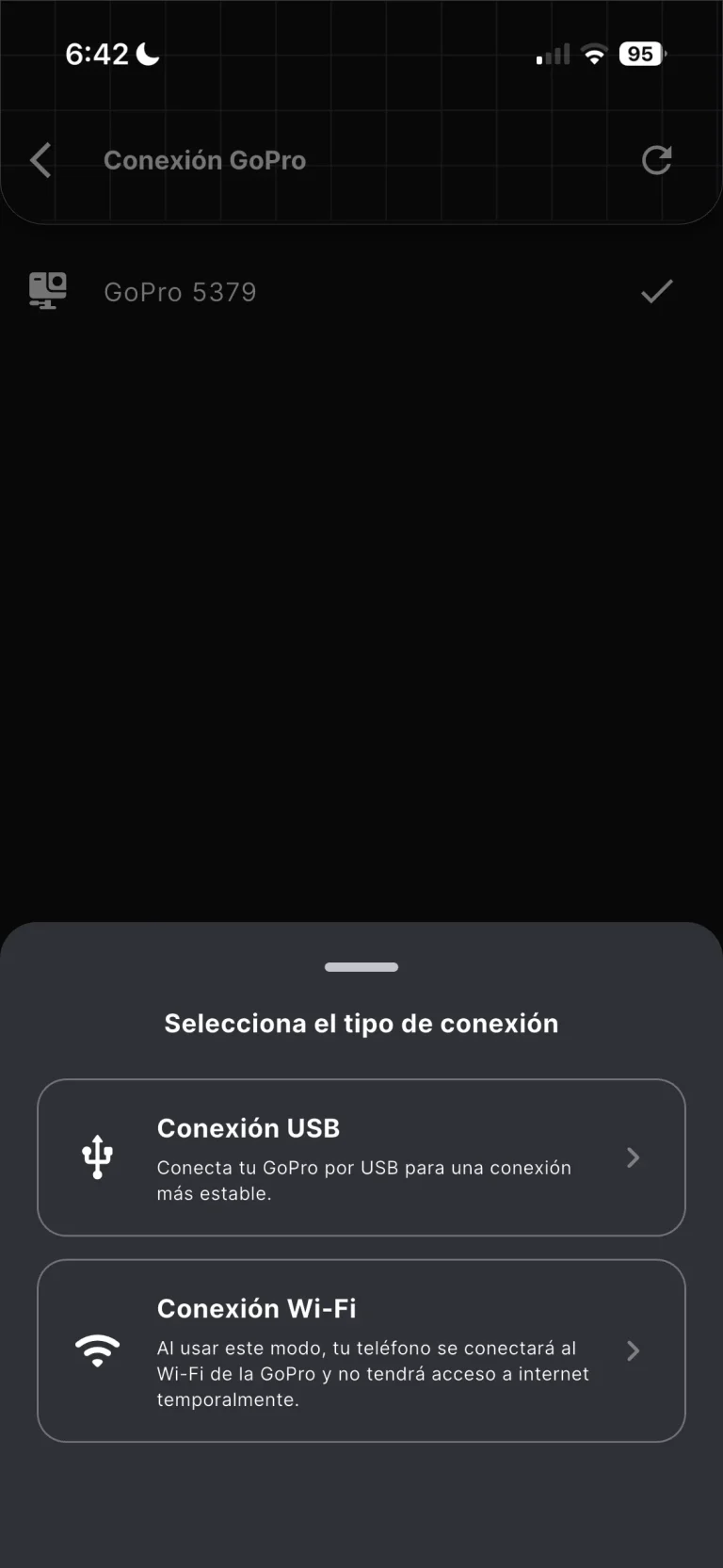
Snap360 lets you connect the GoPro in two ways:
- Over Wi-Fi
- Over USB
Follow these steps in the app:
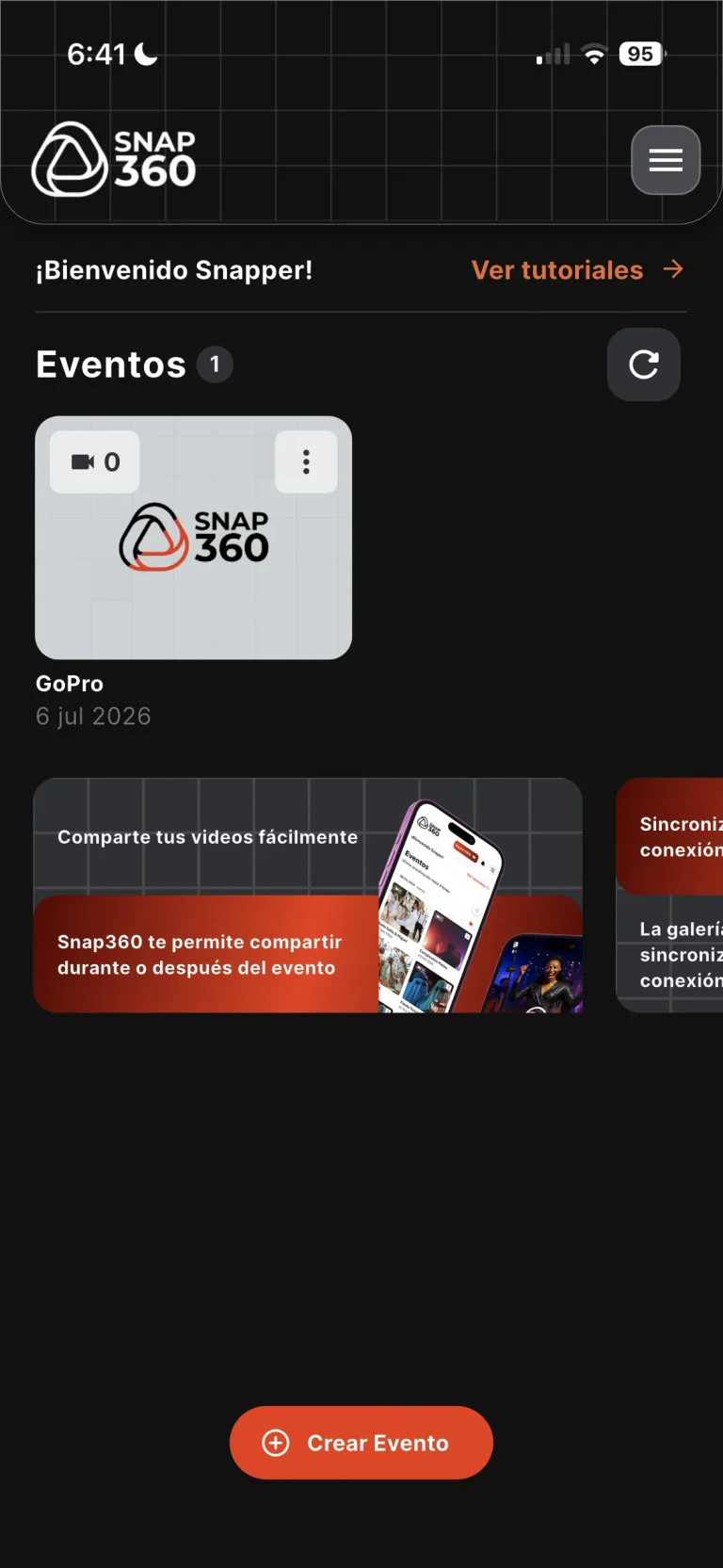
1. Open Snap360
2. Go to Settings (Menu ☰ -> Settings).
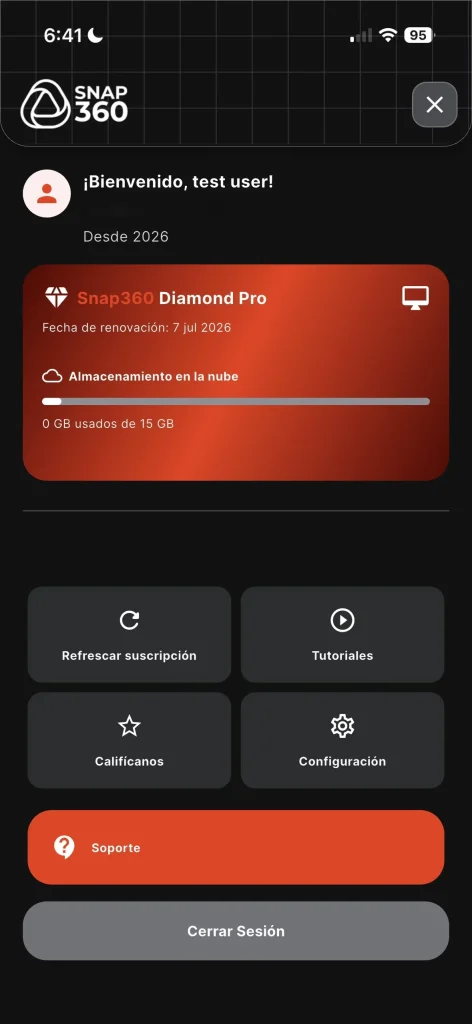
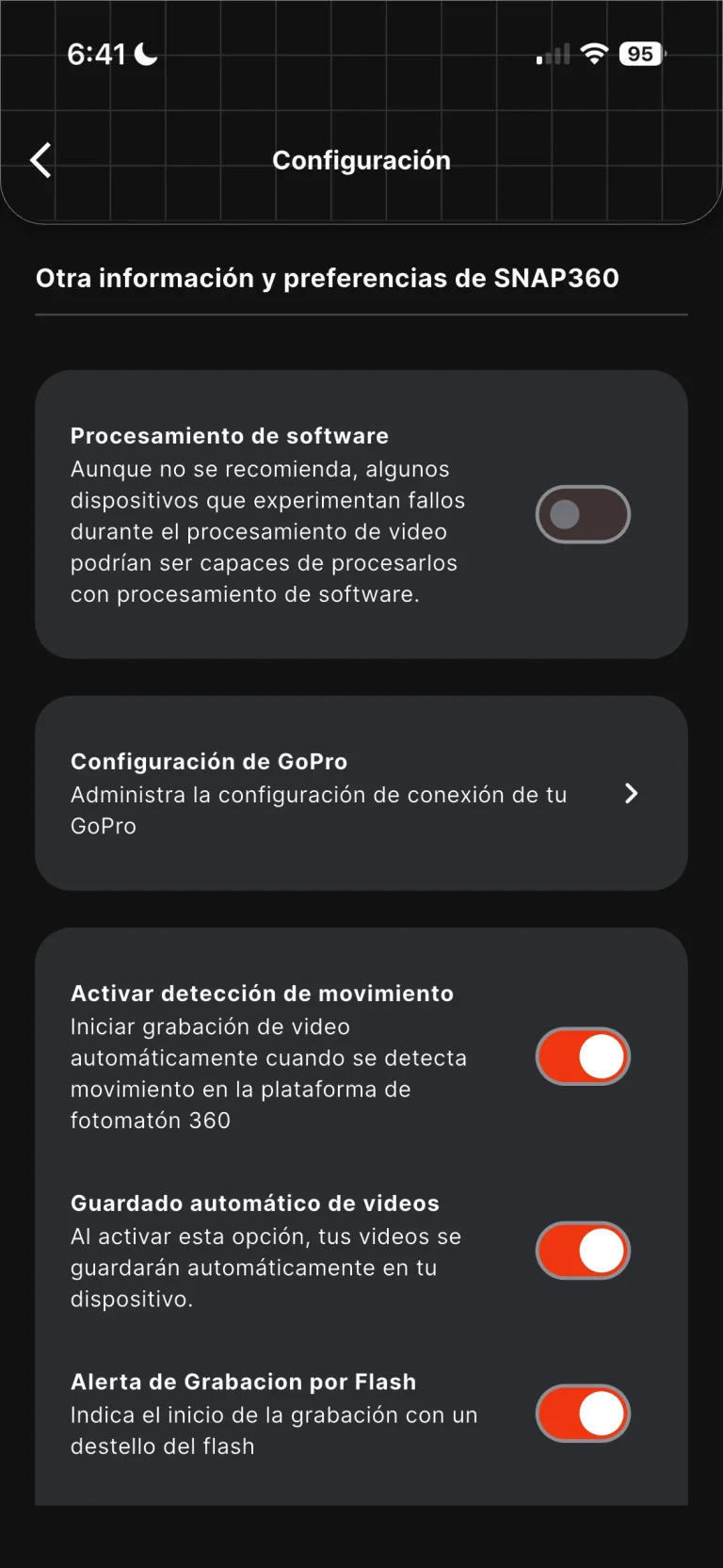
3. Open GoPro Settings.
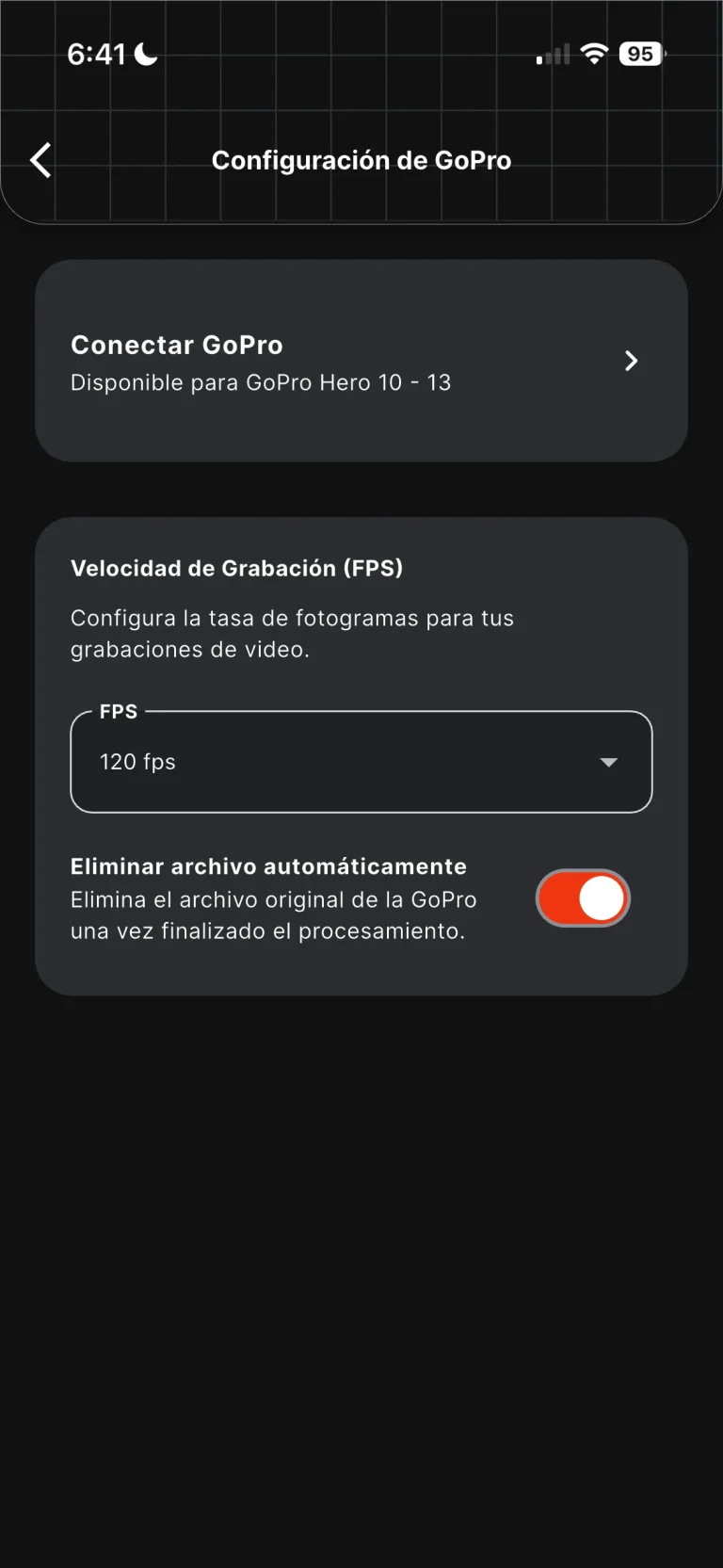
4. Tap Connect GoPro.
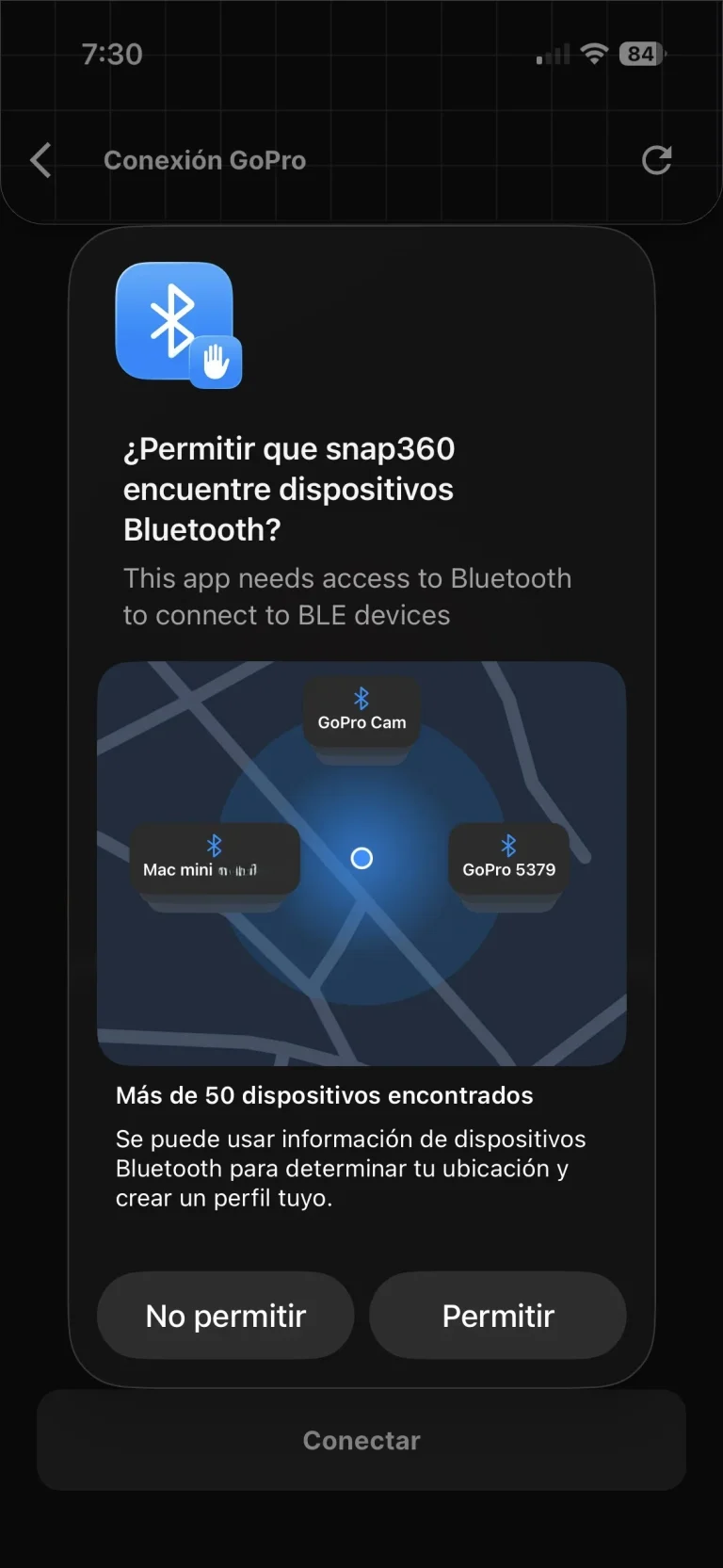
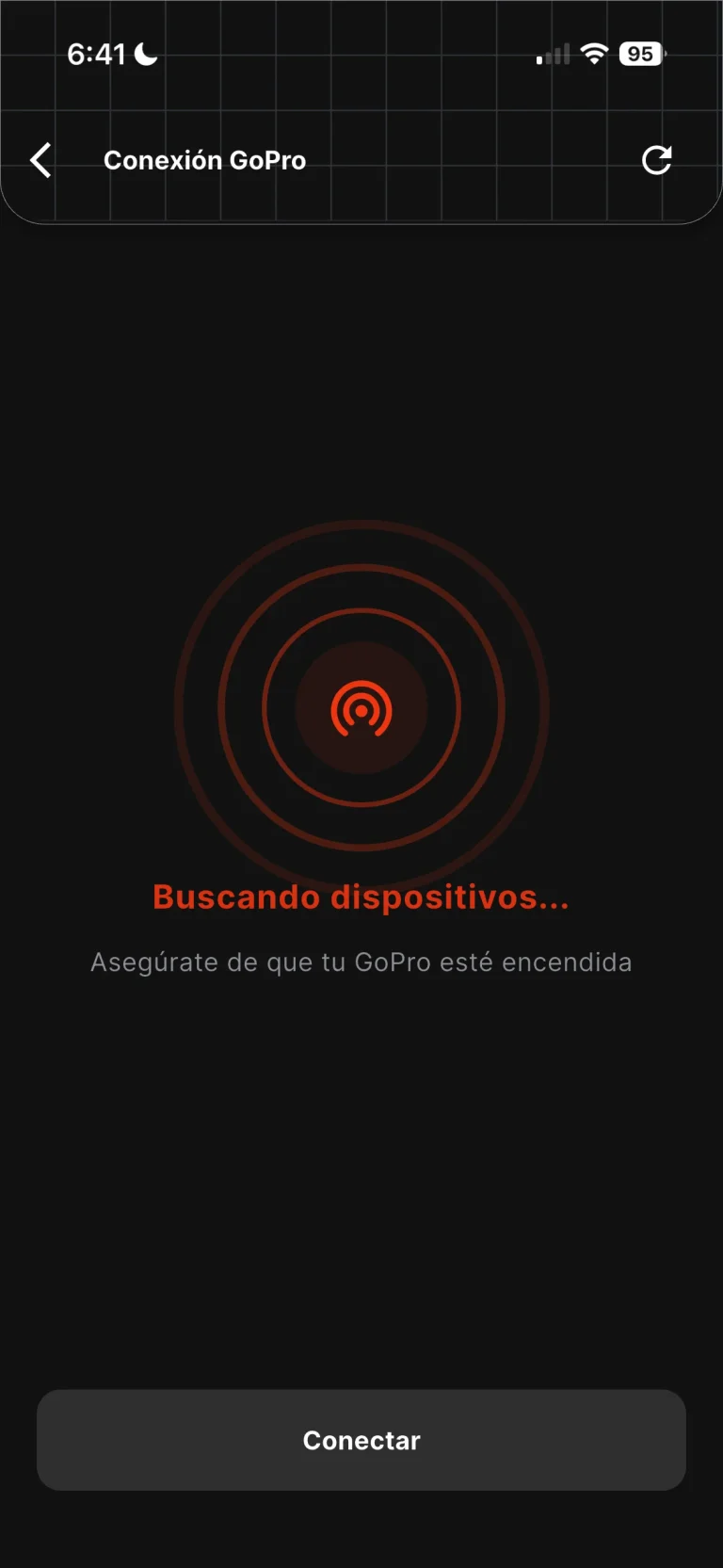
5. The App Searches for Available Devices.
It asks for permission to connect over Bluetooth
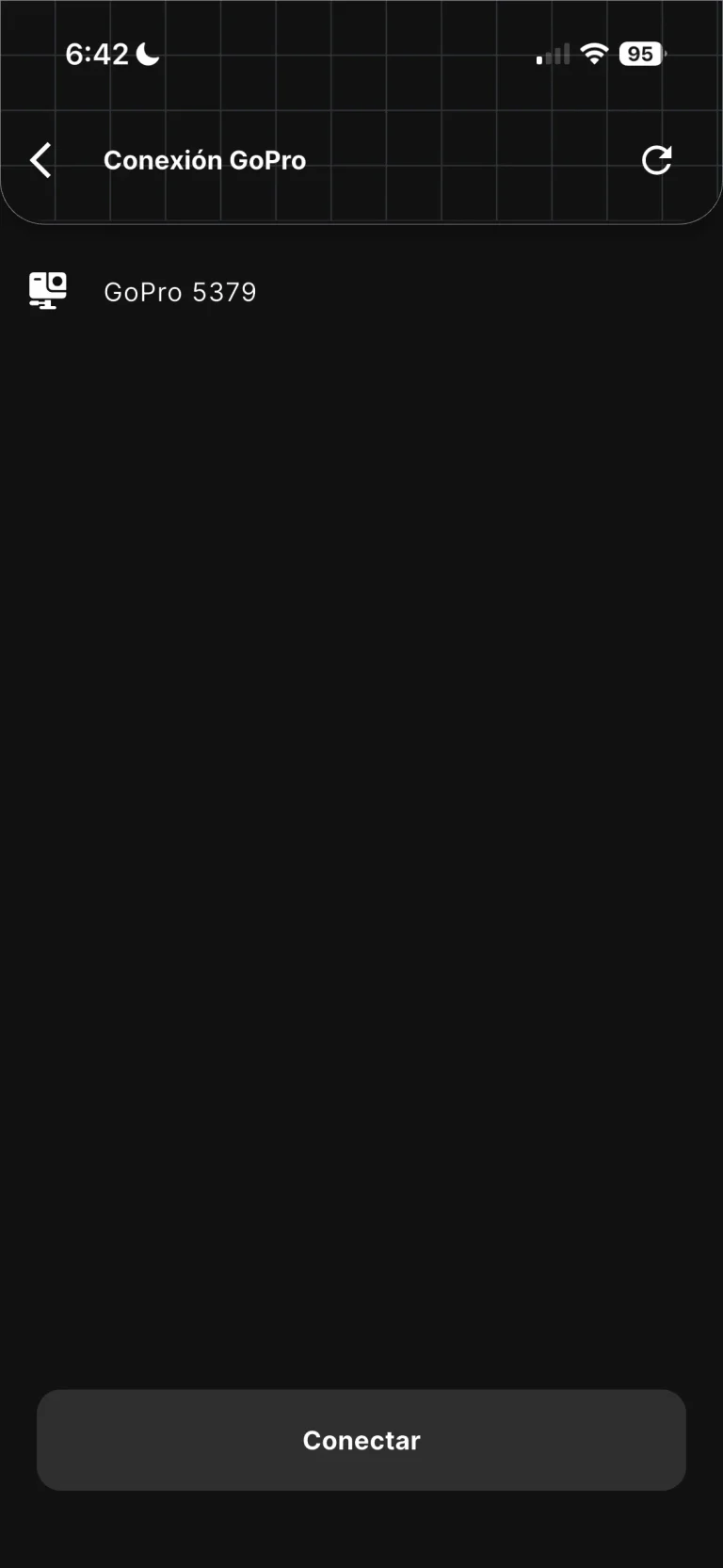
6. Pick Your GoPro from the List.
7. Tap the Connect Button.
8. A Menu Opens to Choose the Connection Mode.
8.1 Connecting Over Wi-Fi 📡
When you select Wi-Fi, allow location access.
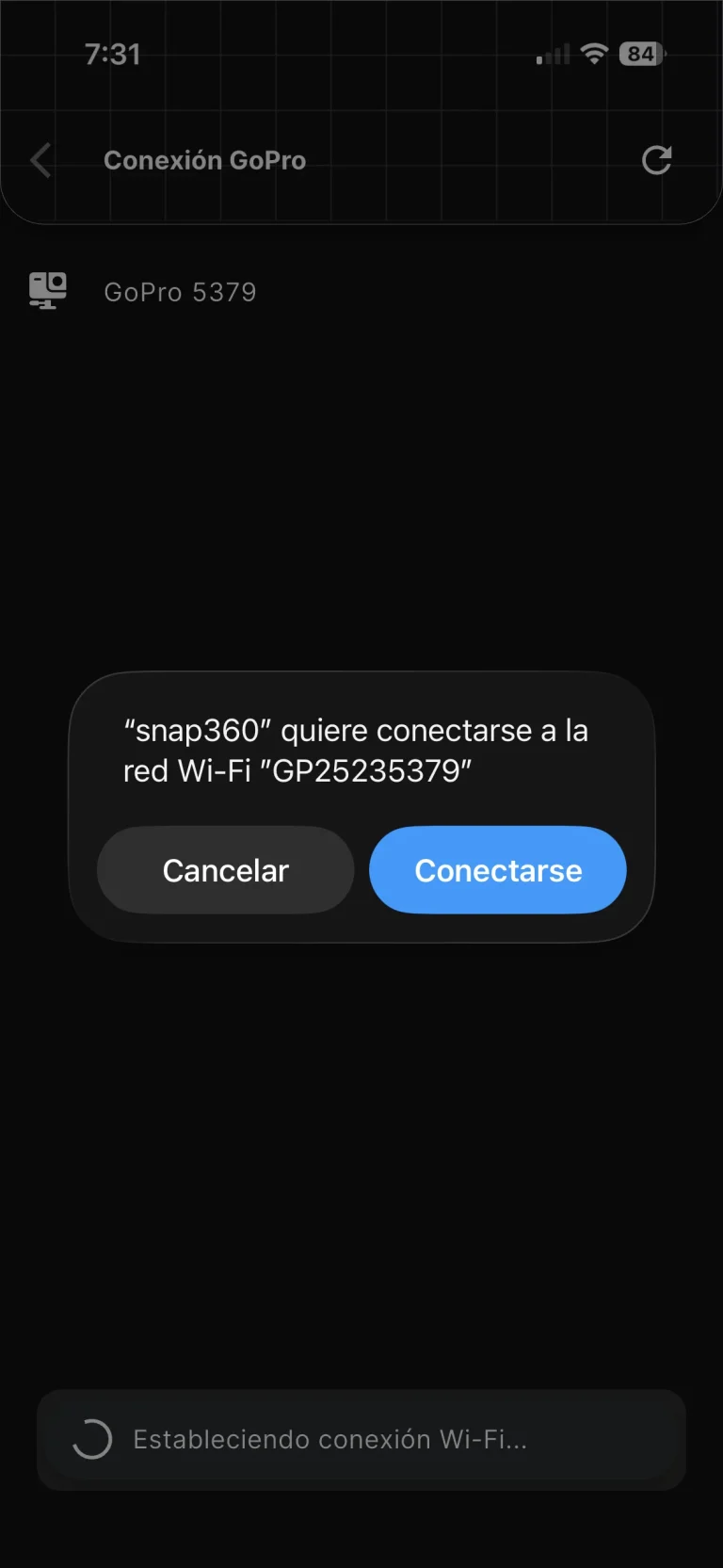
Confirm the pairing when it appears on screen.
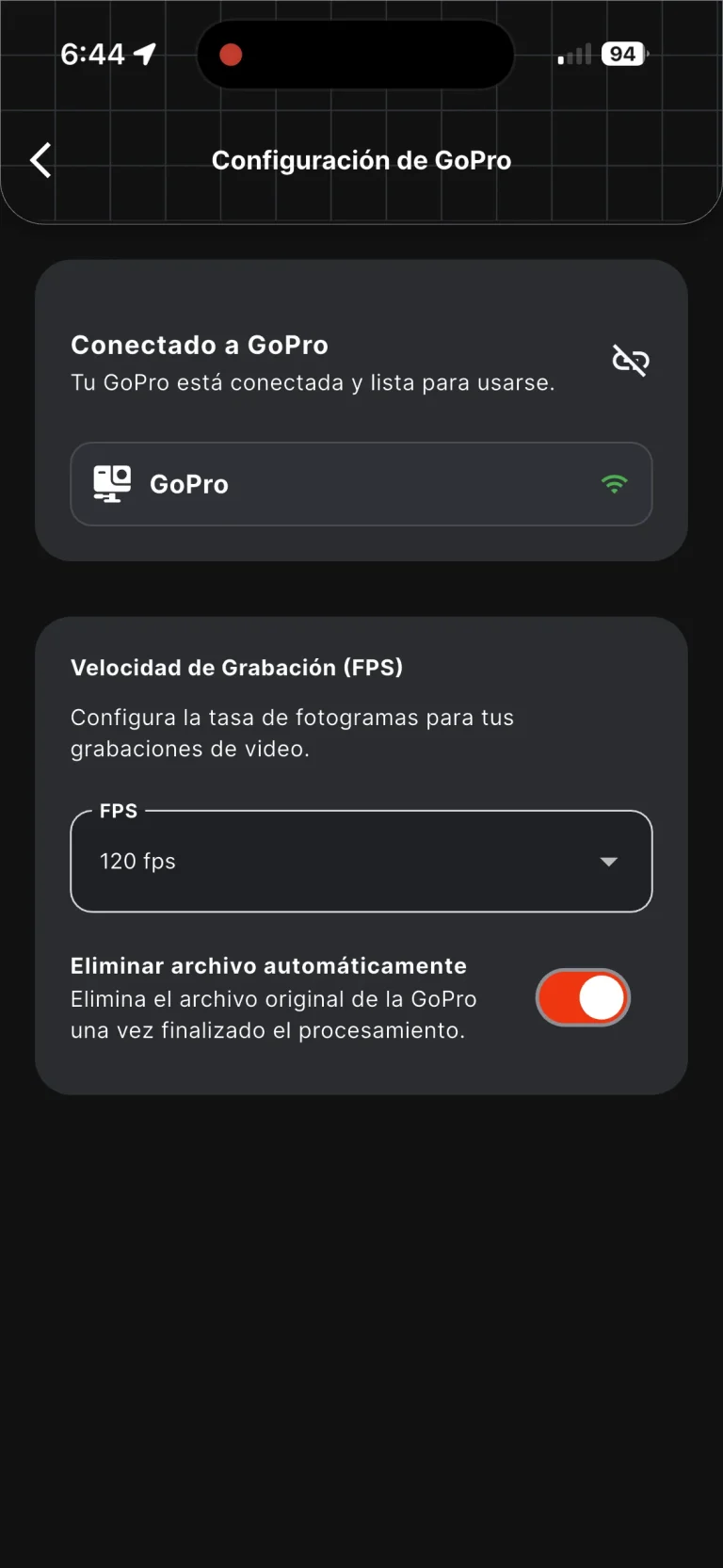
DONE! The camera is connected.
8.2 Connecting Over USB 🔌
When you connect the GoPro over USB, the moment you plug in the cable really matters.
⚠️ When the menu to choose Wi-Fi or USB appears (Step 8), plug the USB cable in between the GoPro and the phone.
Wait 2 or 3 seconds.
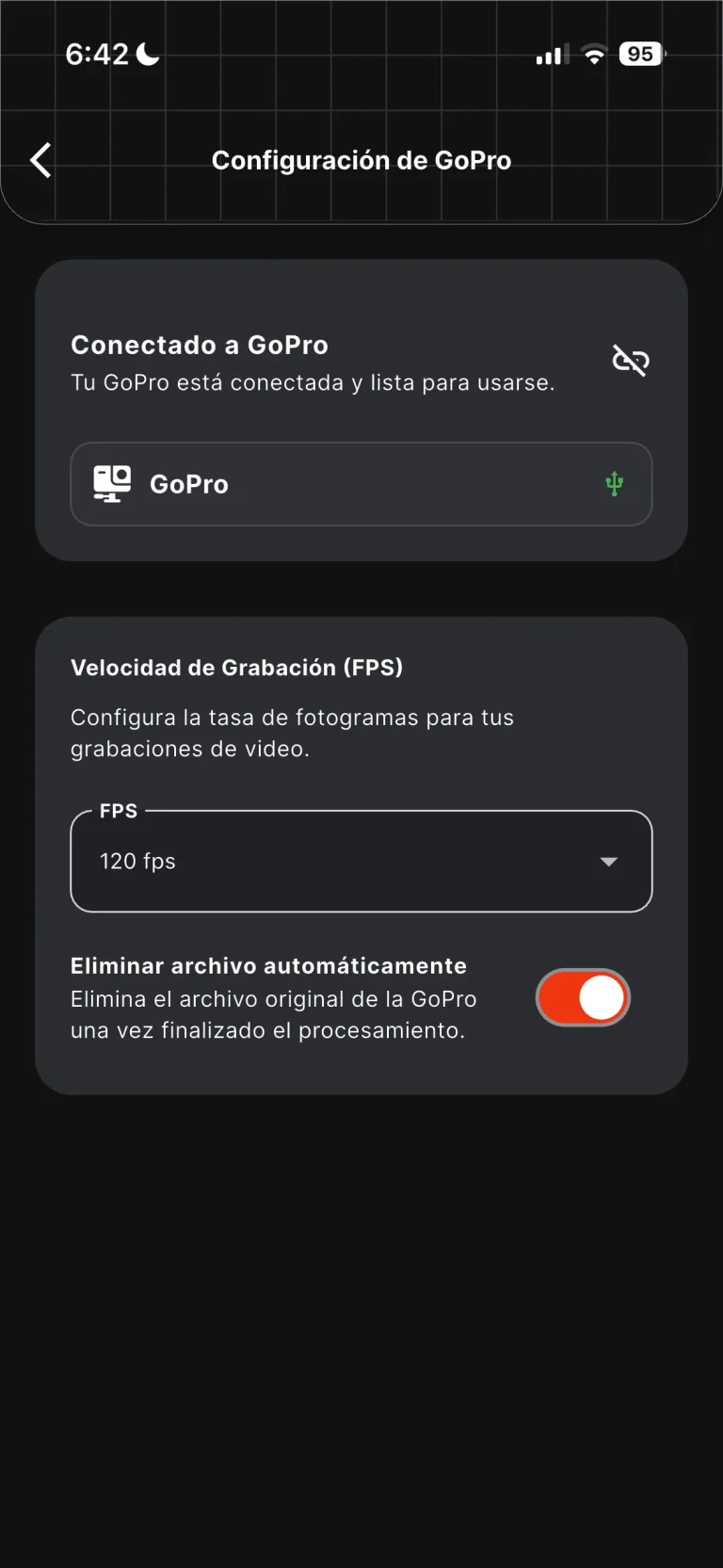
Select USB mode.
⚠️Key rule: when you plug the cable in, the GoPro screen has to show the message “USB CONNECTED”.
If the GoPro only shows that it is charging and does not display “USB CONNECTED”, Snap360 will not be able to detect it properly.
If that happens, unplug the cable, restart the GoPro and try again.
9. When You Start Recording, Accept the Permissions It Asks for.
10. A Warning Appears Telling You to Use the Camera in Portrait Mode Only.
11. You Are All Set to Start Recording!
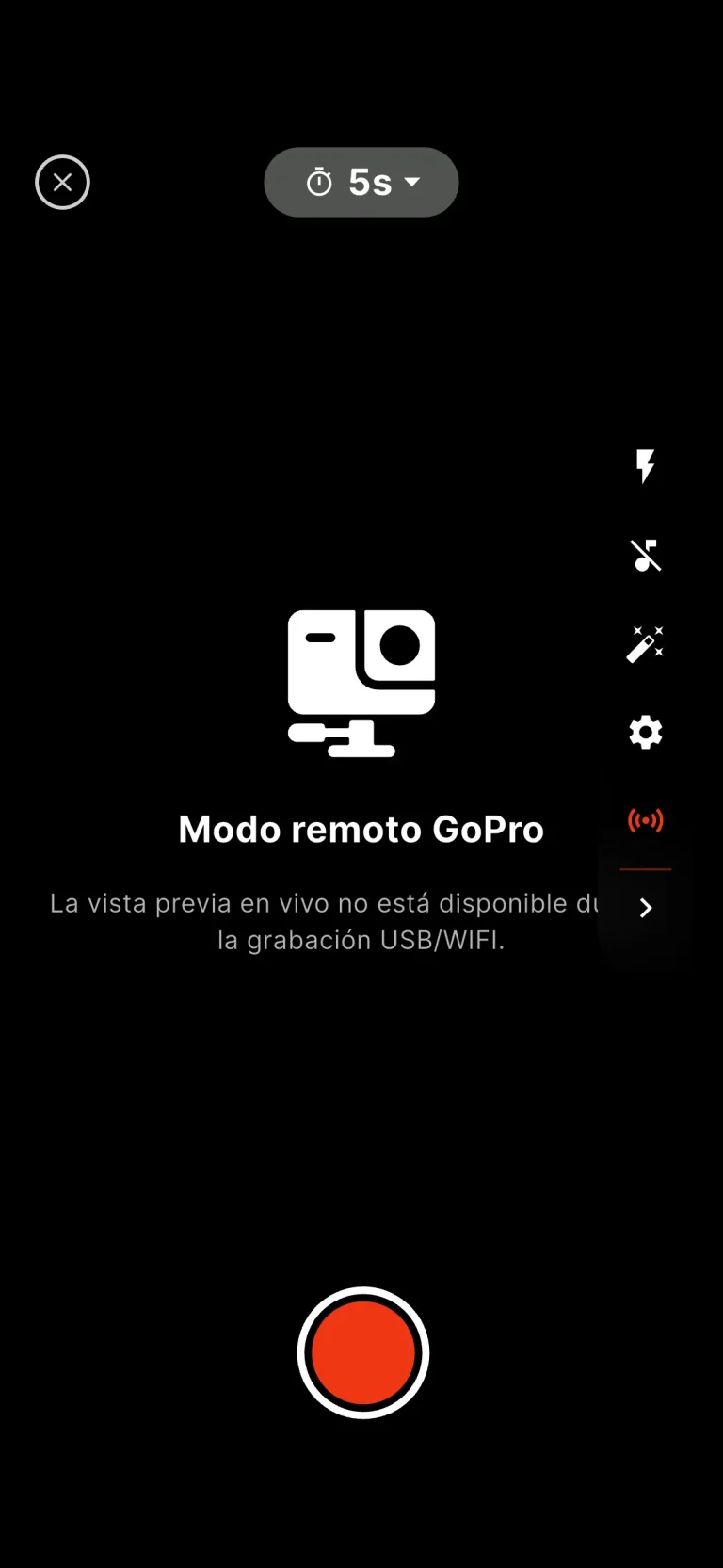
What Can You Do Once the GoPro Is Connected?
Once it is connected properly, Snap360 lets you:
- Control the GoPro settings from your phone.
- Start and stop video recording from the app.
- Transfer the recorded videos to the phone automatically.
- Process the videos inside Snap360.
Taking photos with the GoPro is not available right now. The integration is built for video recording.
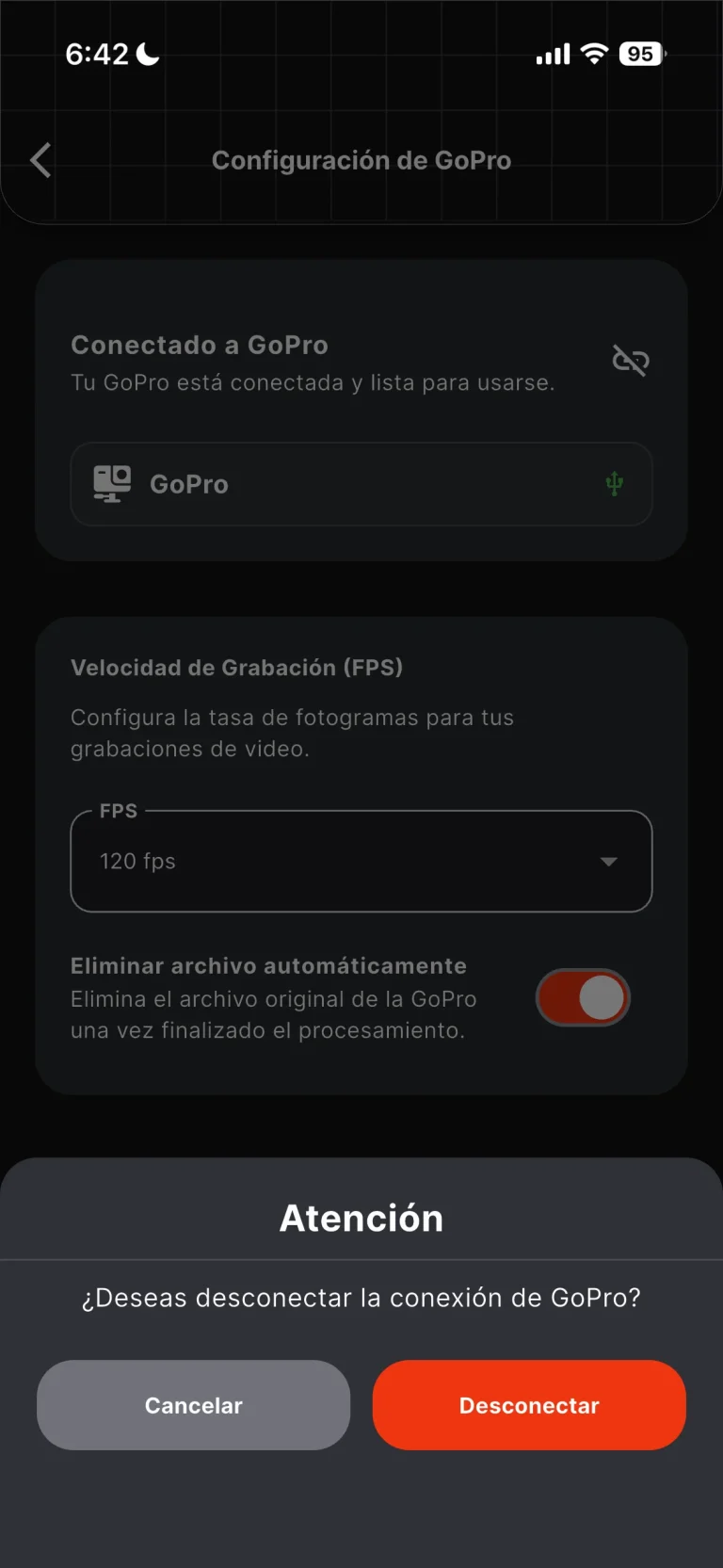
How Do You Disconnect the GoPro?
To disconnect the camera manually:
- Go into Settings.
- Go to GoPro Settings.
- Tap the camera name or the disconnect icon.
- Confirm the disconnection.
Once the GoPro is disconnected, Snap360 goes back to using the native camera on the phone.
What Happens if the Camera Disconnects on Its Own?
If the GoPro turns off, loses signal or runs out of battery, Snap360 may show an error when you try to record.
The message may say the camera did not respond and that you should check the connection.
If that happens:
- Tap Go Back.
- Check that the GoPro is still on.
- Check the battery and the free space.
- Restart the GoPro if you need to.
- Connect it again from GoPro Settings.
If the app cannot keep using the GoPro, it switches automatically to the native camera on the phone.
Common Problems and Fixes ❗❗
Snap360 Does Not Detect the GoPro Over USB
Check the following:
- Plug the cable in right when the mode selection menu appears.
- Check that the GoPro screen says “USB CONNECTED”.
- If it only shows charging, restart the camera.
- Try another USB cable that supports data transfer.
- As a last resort, you may need to format or reset the GoPro.
The Wi-Fi Connection Fails
Try this:
- Turn on Bluetooth and Wi-Fi on the phone.
- Make sure the GoPro has its wireless connections turned on.
- Check that no other phone is connected to the camera.
- Restart the GoPro and try again.
The App Asks for Permissions or Fails When Recording
Check the Snap360 permissions in your phone settings.
On iOS, make sure above all that the local network permission is on.
Without it, the app can detect the camera but cannot send it commands properly.
The Camera Disconnects When You Start Recording
This can happen because of:
- Low battery on the GoPro.
- Not enough space on the SD card.
- An unstable Wi-Fi or Bluetooth connection.
- Another device connected to the camera.
Check the battery, free up space, restart the GoPro and connect it again.
If your GoPro still will not connect after all that, write to support and we will help you sort it out.
Final Tips
To avoid errors during a session:
- Charge the GoPro before you start.
- Use an SD card with enough space.
- Always record in portrait.
- Make sure you accept every Snap360 permission.
- On iOS, always turn on the local network permission.
- If you use USB, check that the GoPro shows “USB CONNECTED”.
- If something fails, restart the GoPro and try connecting again.
Frequently Asked Questions About GoPro and Snap360App
How Do I Record 360 Videos with a GoPro and Snap360?
Connect the GoPro over Wi-Fi or USB from Settings > GoPro Settings, position the phone and the camera vertically, and record straight from the app (see the step-by-step guide above).
Which GoPro Models Work with Snap360?
GoPro Hero 10, 11, 11 Mini, 12 and 13. The Hero 9 may show up in the list of detected devices, but it cannot record at the moment.
Can the GoPro Take Photos in Snap360, or Only Video?
For now the GoPro integration is built for video recording only; taking photos with the GoPro is not available.
Do I Need Internet to Connect the GoPro?
You do not need internet, but you do need Bluetooth and either Wi-Fi or USB turned on, plus the Snap360 permissions (camera, microphone, location/nearby devices and local network on iOS).
Ready to Start Recording!
With these steps you can connect your GoPro to Snap360 and use it to record, transfer and process your videos straight from the app.
We hope this guide helped you set your camera up the right way. All that is left is to prep your event, connect your GoPro and start creating content with Snap360.