360 Video Booth Effects: Slow Motion, Boomerang and Speed Ramping
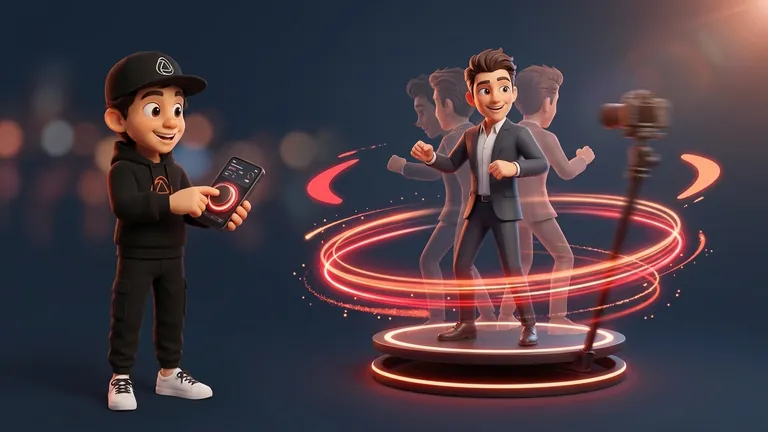
The 360 video booth effects that transform a clip the most are slow motion, boomerang, and speed changes. Add a filter, an animated frame, and the right song, and a standard spin turns into a video guests actually want to share. In Snap360App, everything is set up in the event before recording. This guide sums up what each effect does, when to use it, and where to find it in the app, with links to the detailed guide for each feature.
At a Glance
- Slow motion: elegance and emotion, especially for weddings and galas.
- Boomerang: the action goes forward and back; short, fun, and made for social media.
- Custom speed by section: fast at the start, slow at the key moment, and fast again at the end.
- Filters, animated frames, and music: the style of the event or the brand.
Where to Set Up Effects in Snap360App
Open the event and tap the gear icon. Under “Camera and formats” you’ll find video speed, the boomerang effect, the lens, recording time, and the countdown. Under “Visuals and music” you’ll find frames, intro and outro images, and music. Filters are selected on the recording screen. If this is your first event, start with the complete guide to recording 360 videos.
360 Photo Booth Slow Motion: When to Use It
Slow motion highlights the moments that happen too fast in real time: a dress in motion, a toast, confetti, or a jump. It’s the most rewarding effect for weddings, galas, and celebrations.
- Best for: entrances, toasts, kisses, confetti, and outfits with movement.
- It needs light: in slow motion, each frame gets less light, so bring continuous front lighting. We explain it in the guide to lighting a 360 photo booth.
- It needs frames: the more fps the camera records, the smoother it looks. See the resolution and FPS guide.
In Snap360App, you adjust it with the video speed slider under “Camera and formats”.
Custom Speed by Section: Fast, Slow, Fast
If you turn on “Custom video speed”, three sliders appear: start, middle, and end. Each one sets the speed for that section, so you can begin fast to hook attention, slow down at the key moment, and finish with energy. That gives a clip of just a few seconds its own rhythm. The step-by-step setup is in the guide to 360 video speed.
- Weddings: normal start, slow middle for the key gesture, and a smooth finish.
- Brand activations: fast start, slow middle when the product is shown, and a fast ending.
- Parties: fast sections with a short slow middle for the jump or dance move.
360 Photo Booth Boomerang: Forward and Back
Boomerang repeats the action forward and backward. It’s short, works without sound, and fits parties, groups, and social content. In Snap360App, you turn it on with the boomerang effect under “Camera and formats”, and you can save it in your default settings so every new event starts with it.
- Best for: birthdays, themed parties, and high-energy events.
- Works best with: short, clear gestures like a jump, a hand in the air, or a toast.
- Avoid: long actions or too many people moving at once, because the bounce-back effect gets lost.
360 Booth Reverse Effect: How to Get That Forward-and-Back Look
Many Snappers look for a reverse effect: confetti flying back into a hand or a jacket landing back on a shoulder. In Snap360App, that forward-and-back look is created with boomerang: the action plays forward and then backward. It looks best with a gesture that has a clear beginning and end, like throwing something into the air and catching it, or a pose that builds and then unwinds.
Filters: One Style for the Whole Event
Snap360App includes 24 video filters, from black and white to cinematic and vintage looks, and they’re available to all Snappers. You select them with the magic pencil icon on the recording screen and can preview the result before recording. The filter applies to the main video, not to the intro and outro clips or the frame. You can see all of them in the guide to video filters.
- For weddings: soft filters like Neutral Clean, Soft Contrast, or Black & White.
- For brands: Vibrant or Pop Punch, as long as they don’t clash with the client’s colors.
- For parties: Cine Matte, Moody Blue, or Vintage Fade, depending on the vibe.
Animated Frames: Motion and Branding
An animated GIF frame adds motion around the video: names, dates, a brand logo, or a seasonal detail. You import it from “Visuals and music”, under “Video frame”, “Frame gallery”, and “Import frame”, and the file must be under 5 MB. You’ll find the full step-by-step process in the guide to animated frames.
Music: The Rhythm of the Effect
Music defines how the effect feels. Upload the song to the event and trim it with the waveform so the chorus hits at the same time as the spin. If you want ideas, here are 20 songs for a 360 photo booth.
Front Camera and Automatic Recording
There are two settings that aren’t effects but still change the result. The front camera lets guests see themselves while recording, which leads to more natural reactions. And automatic recording with motion detection starts recording when the platform moves, so you can focus on hyping up the guests.
Which Effect to Choose for Each Type of Event
- Weddings and galas: slow motion, a soft filter, and a subtle frame.
- Brand activations: custom speed by section and an animated frame with the client’s logo.
- Birthdays and parties: boomerang and upbeat music.
- Trade shows and conferences: custom speed by section and fast QR delivery.
The practical rule: let one effect lead and let the rest support it. Test the combination in a trial event before the big day. You can try all capture modes with the Free Plan: download Snap360App for free and record your first effects. And if you want to see everything the app can do, check out its features.
Frequently Asked Questions
What are the best 360 video booth effects?
Slow motion for emotional moments, boomerang for short and fun clips, and custom speed by section to give rhythm to a video that lasts only a few seconds. Filters, animated frames, and music complete the style.
How do you create slow motion in Snap360App?
Inside the event, go to “Camera and formats” and adjust the video speed. If you turn on “Custom video speed”, you can set a different speed for the beginning, middle, and end.
Does Snap360App have a reverse effect?
You get the forward-and-back look with the boomerang effect, which plays the action forward and then backward. You turn it on under “Camera and formats”.
Can I combine multiple effects in the same video?
Yes. In the same event, you can adjust the speed, choose a filter, add a frame, and include music. Test the combination before the event to make sure one effect leads and the rest support it.
Do video filters cost extra?
No. All 24 video filters are available to every Snapper.