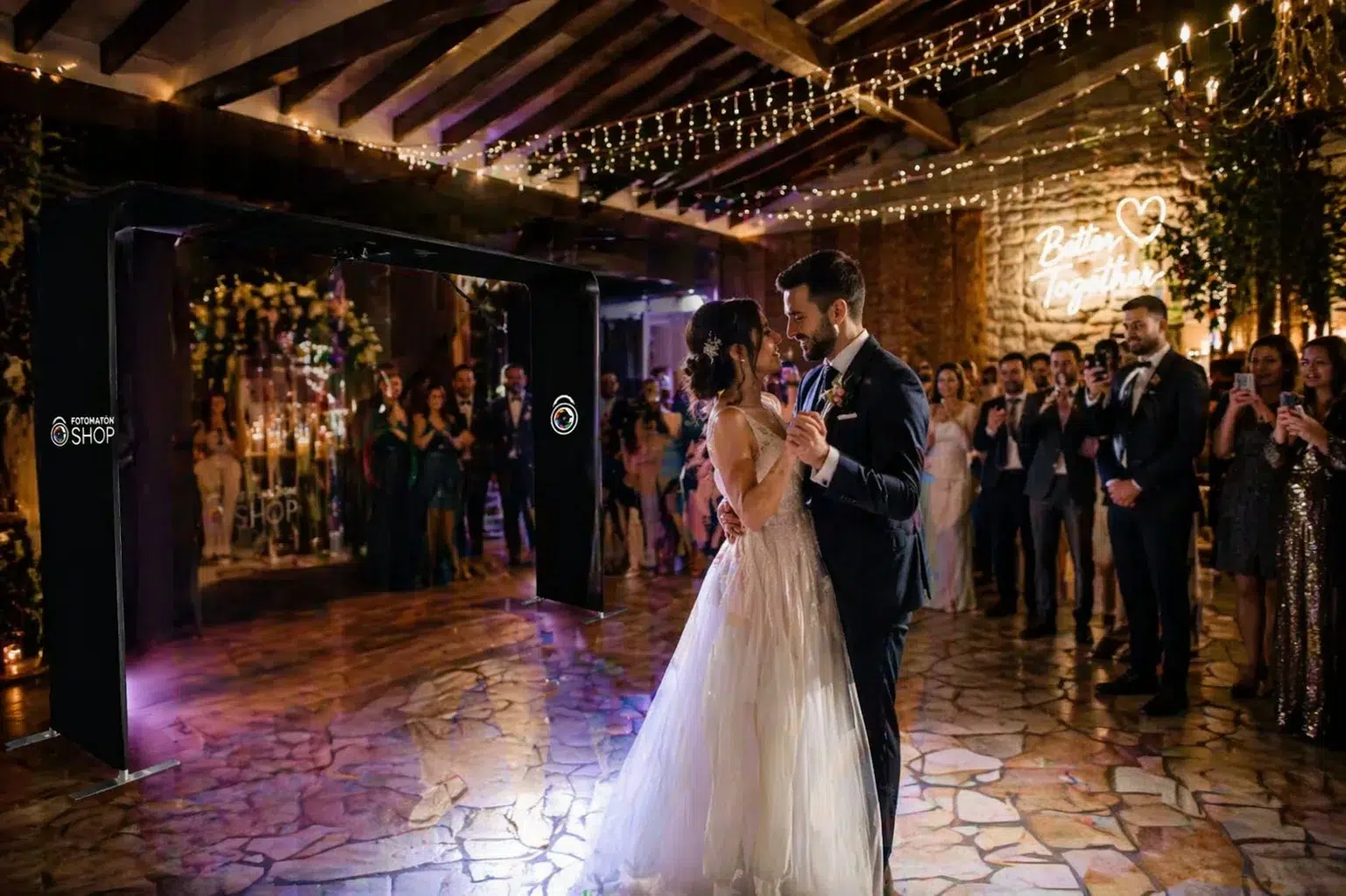

Creativity never stops with Snap360. You can add animated overlays (GIFs) to your videos and take your recordings in the photo booth app to another level. This feature lets you bring movement and energy to what you create, making your content stand out and giving it that unique touch that gets everyone noticing the details and talking about your video.
An animated overlay is a GIF file you can add to your 360 videos. Unlike static overlays, these include animations and visual effects that bring a sense of movement and life to your recordings. That makes them a perfect tool for events, promotions, or simply to add a creative, professional touch to your videos.
How Do Animated Overlays Work in Snap360?
Using this feature and adding a custom animated overlay is very simple. Just follow these steps:
Go to the event settings → Visuals and music.
Tap Video overlay → Overlay gallery.
Select the Import overlay option.
Your device's file gallery will open.
Select your GIF file (remember it has to be under 5 MB).
The overlay imports automatically and you can apply it to your video.
💡 Tips for Using Your Animated Overlays Well
Shrink the file: if your GIF is too large, you can reduce its size with free online tools to guarantee a faster, trouble-free upload.
Pick the right GIF: choose animations that complement the style of your video instead of visually overloading it. Balance is everything.
Frequently Asked Questions
Which File Formats Can I Use for Animated Overlays?
Snap360, the 360 photo booth app, only supports .GIF files for the animated overlay feature. Make sure your file is in the right format so you can use it in your videos.
What Is the Maximum File Size Allowed for GIFs?
The GIF file must not go over 5 MB. This limit keeps your animated overlays loading fast and without errors.
What Do I Do if My GIF Is Too Large to Import?
If your GIF goes over the 5 MB limit, you can use free online tools to reduce the file size. Once you have done that, you can import it without any trouble.