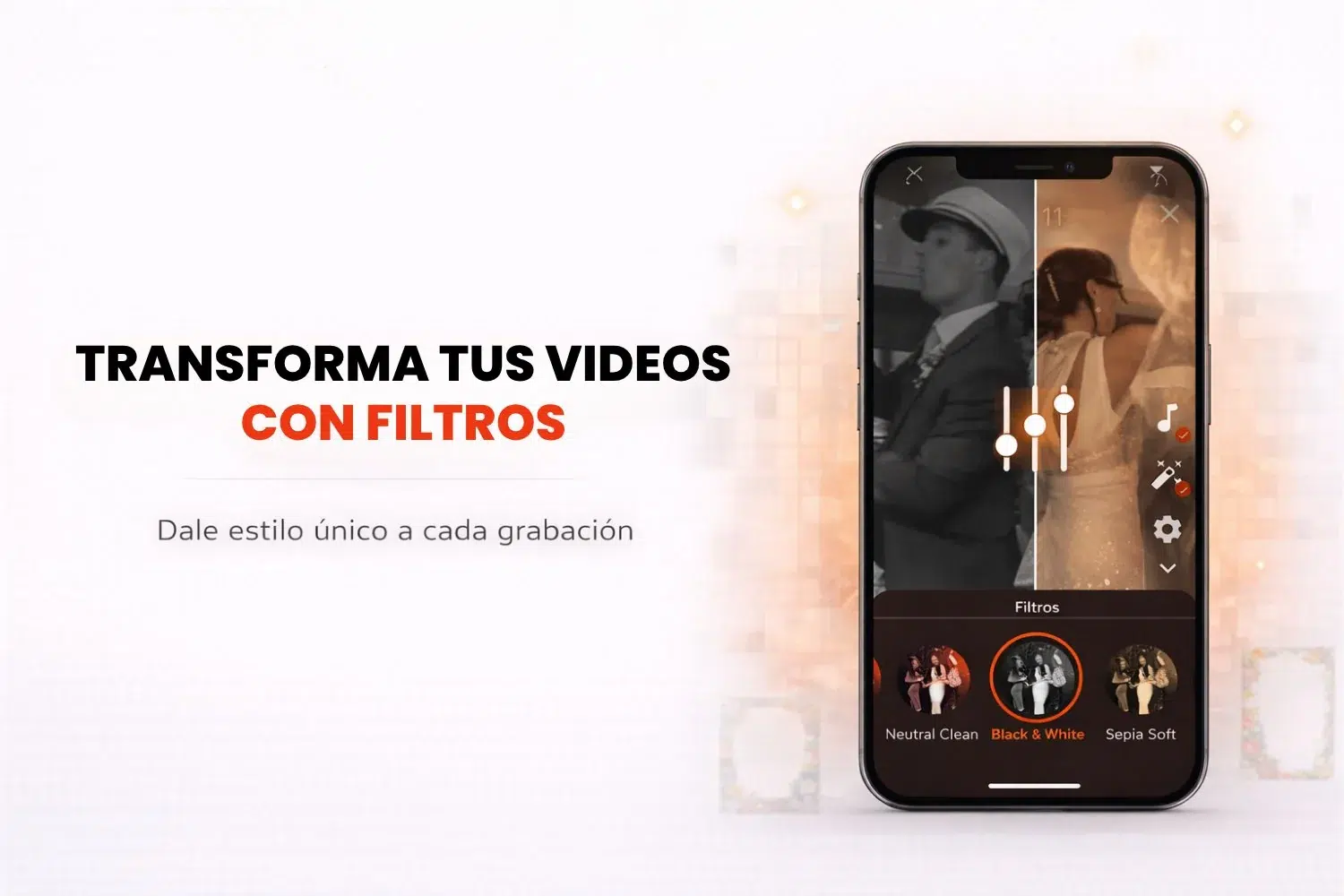
With video filters in Snap360 you can give your 360 recordings a look of their own, matching the visual style to the event you are working. With 24 different filters, you have a lot more room to make videos that look professional, all inside the photo booth app.
Which Filters Are Available in Snap360?
The 360 photo booth app comes with a wide range of filters that change the look of your 360 videos, so you can pick the one that fits your style. Here are the 24 filters available:
Neutral Clean
Black & White
Sepia Soft
Warm Skin
Cool Clean
Cine Teal Orange Lite
Cine Matte
Pop Punch
Pastel Soft
Vintage Fade
Moody Blue
Gold Tint
Vignette
Vibrant
Desaturated
Bleach Bypass
Film Kodak Lite
Teal Orange Pro
Soft Contrast
Bright Clean
Cinematic Fade
Green Forest
Pink Rose
Soft HDR
These filters are built to add different visual effects to your videos, from vintage looks to cinematic styles, and the best part is that all of them are available to every Snapper.
⚙️ How to Use Video Filters in Snap360
Using filters on your videos is very simple. Just follow these steps:
Open the recording screen
Go to the center section of your event screen in Snap360.Tap the "magic pencil" icon
On that screen, find and tap the "magic pencil" icon on the right side. That is the shortcut to the video filters.Browse the available filters
Tapping the icon brings up all 24 filters available to you. You can preview each one as you select it.Apply the filter and preview the change
When you pick a filter, it is applied right away to your video on the preview screen. That way you see exactly how it looks before you start recording.
🖼️ What to Know About the Filters Update
Filters apply only to the main video: filters affect the main content of the video only. They do not change the intro or outro clips, or the video overlay.
Better preview: they apply better on the processed video, which means what you see in the preview is very close to the final result.
Works with both lenses: they work perfectly with both lenses available in Snap360, the 360 photo booth app, which gives you even more flexibility while you record.
Frequently Asked Questions
How Many Filters Are Available in Snap360?
Snap360 has around 24 filters you can apply to your 360 videos, so you can style your content the way you want.
Are the Filters Free?
Yes, every filter is available to every Snapper.
Can I Preview How a Filter Will Look on My Video Before Applying It?
Yes. When you select a filter it is applied immediately on the preview screen, so you see how it looks before you record the video.
Do Filters Affect the Intro or Outro Clips of the Video?
No, filters only affect the main content of the video. The intro clip, the outro clip and the video overlay are left untouched.