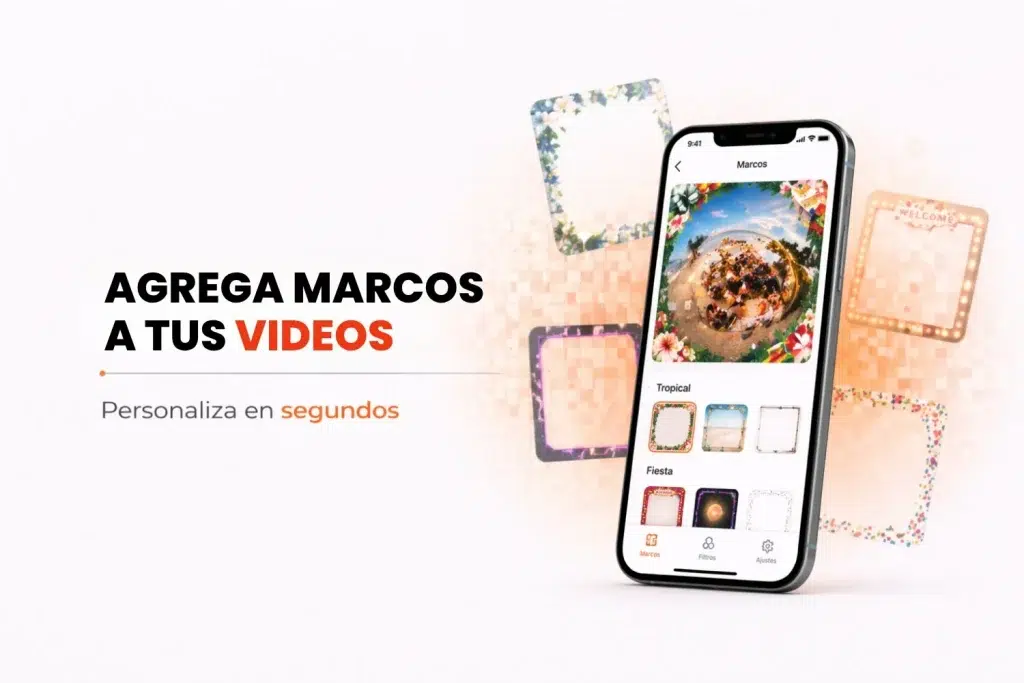
Looking for a fast, professional way to customize your videos with a 360 video app? Snap360, the best 360 photo booth app, does more than capture great moments: it lets you give them a signature look with custom or ready made overlays. Birthdays, christenings, weddings, parties or corporate events, customizing your videos has never been this easy.
Below we show you how to upload and set up overlays, the recommended dimensions that keep the quality intact, and how to get the most out of the ready made overlay gallery so you save time without giving up creativity.
Why Use Overlays in Snap360
- Ready Made Overlay Gallery: Save time with overlays built for every type of event. They speed up your workflow and double as inspiration when you sit down to design your own.
- Full Customization: If you would rather design your own, this 360 photo booth app gives you the tools and the exact dimensions for a perfect fit on every video, so the overlay matches the theme you need.
How to Upload and Set Up Overlays in Snap360
Before you start, make sure you have created your event. If you want to know how to start recording and set up your videos, read our article on video settings
1. 📥 Pick Your Overlays
Decide whether you want a ready made overlay or your own upload
- Use Ready Made Overlays: Browse the Snap360 gallery and pick the one that fits your event theme best.
- Upload Your Own Overlays: Make sure your files are in a supported format and at the recommended dimensions.
2. Set Up the Overlays in Snap360
From the Ready Made Overlay Gallery:
- Open the 360 photo booth app, create or select your event and go to the overlays section. Tap overlay gallery to use a ready made one.
- Confirm your choice and save it to the event.
For Custom Overlays:
- Design your overlay in a tool like Canva or Photoshop using the suggested dimensions:
| Overlay Type | Dimensions (pixels) | Best For |
|---|---|---|
| Vertical | 1080 wide x 1920 high | Formal events and vertical recordings; great for bringing out the details. |
| Square | 1080 wide x 1080 high | Perfect for social media and centered shots; gives you a balanced frame. |
- Save the design as a .png file for compatibility, and make sure the center of the overlay is transparent.
- Load the file into Snap360 and preview the video before recording to check that everything lines up.
Tip: Use colors that contrast with the event theme so the overlay elements stand out.
Why Canva?
- It is easy to use and comes with ready made templates.
- It lets you work at exact dimensions like the ones Snap360 recommends, so the design is right for every event.