
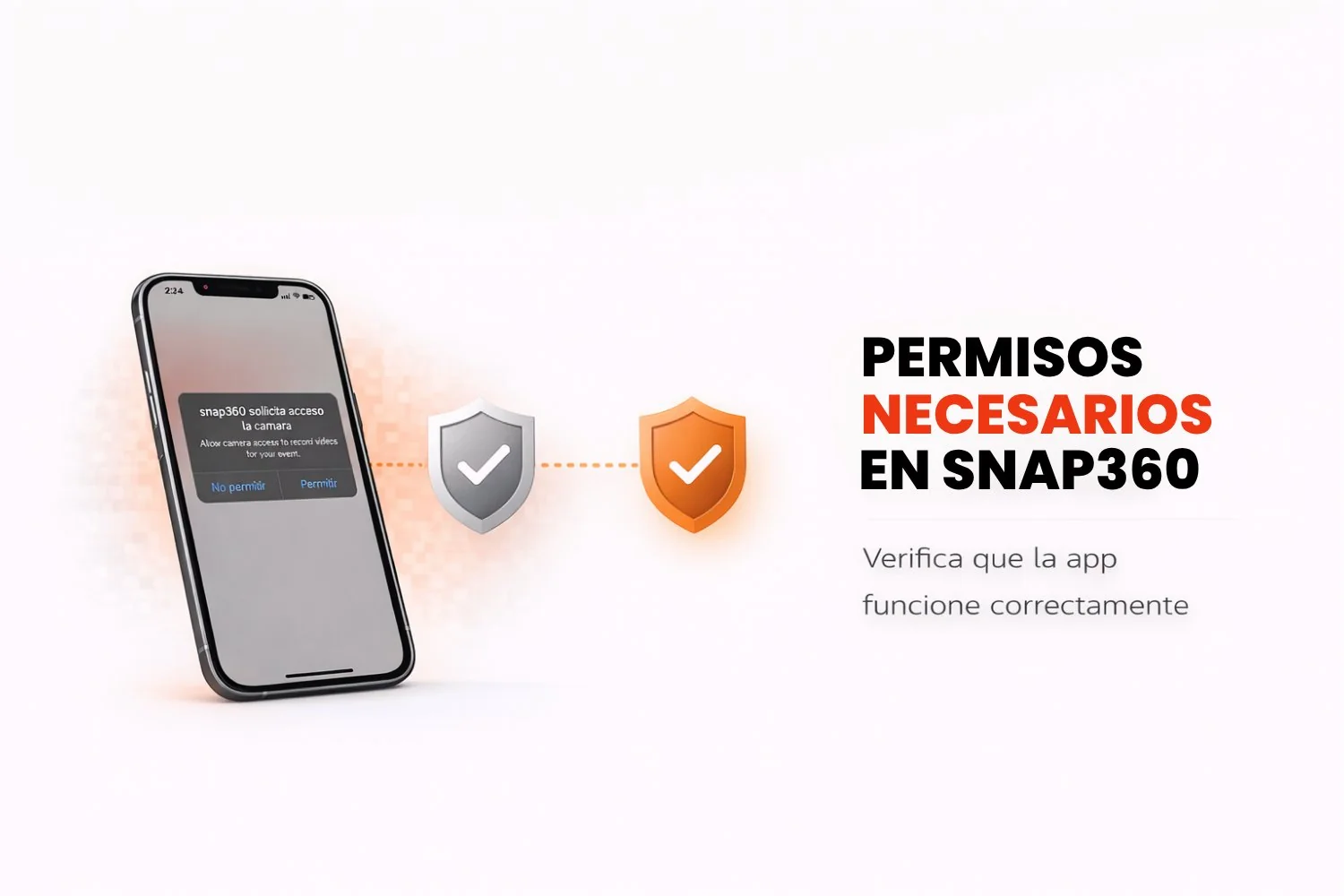
Want to get the most out of Snap360, the best 360 video app around? To record and save great videos to your gallery, the app needs a couple of essential permissions. Those cover camera and storage access, and they are what keep every Snap360 feature running properly.
In this article we go through how to enable the permissions you need on Android and iOS, what to do if something goes wrong, and why they matter for the full Snap360 experience.
Why Are These Permissions Needed?
- Camera permission
This lets the photo booth app use your device's camera to record 360 videos. Without it, capturing 360 content is not possible. - Storage permission
This is what saves your 360 videos straight to your device gallery. Without it, your recordings cannot be backed up locally.
Important note: Snap360 respects your privacy. It does not access your videos remotely. Videos only show up in your web gallery once you upload them yourself, which keeps your privacy and your data safe.
How to Grant Permissions on Android
If you are on Android, follow these simple steps to make sure Snap360 has the permissions it needs:
- Open the Snap360.
- If you have not granted the permissions yet, you will get a prompt asking for them.
- Select "Settings" to open the app settings.
- Go to "Permissions" and make sure these are enabled:
- Camera: so you can record videos.
- Storage: so videos can be saved on your device.
- If you need to change these permissions later, you can do it from Settings > Apps > Snap360 > Permissions.
- Done. You can now record and store your 360 videos without any trouble.
How to Grant Permissions on iOS
On iOS devices such as an iPhone or an iPad, follow these steps to make sure Snap360 has access to the camera and to storage:
- Open Snap360.
- When it asks for camera and storage permissions, tap "Allow".
- If you denied a permission by accident, fix it like this:
- Go to Settings on your device.
- Find Snap360 in the list of apps.
- Under Permissions, turn on both Camera and Photos.
- That is it. You can now record and save videos without any issues.
What if the Permissions Will Not Enable?
If you run into problems, try these fixes:
- Restart your device: a simple restart clears up a lot of permission conflicts.
- Update the app: make sure you are on the latest version of Snap360 to avoid compatibility errors.
- Reset the permissions: turn them off and back on again from your device settings.
- Contact support: if the problem sticks around, our team is ready to help you through technical support.
Enabling camera and storage permissions in the 360 photo booth app is what unlocks all of its features. With this guide, you can make sure your device is ready to capture and save those moments without any hassle.