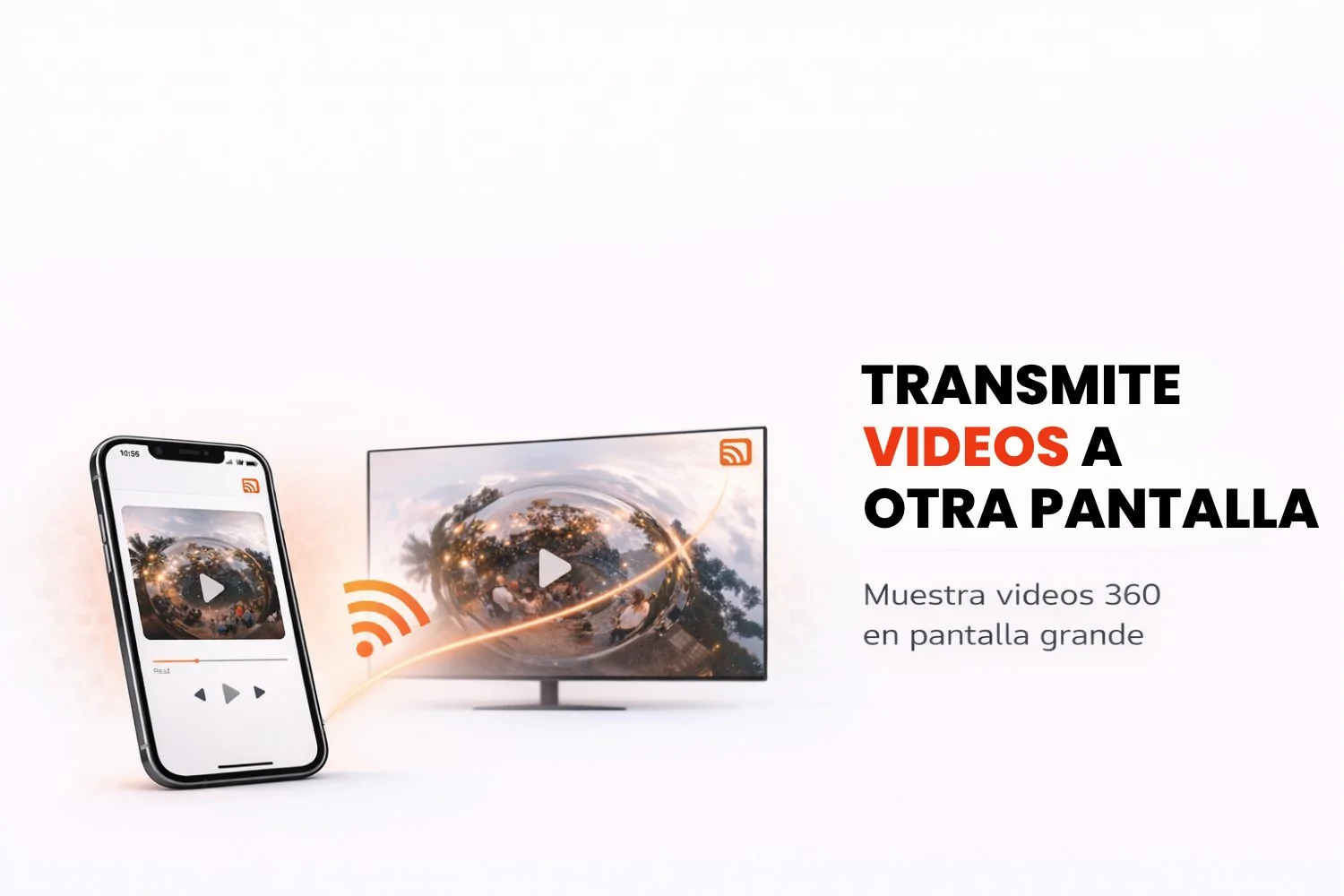
Would you like to show your Snap360 recordings on a TV, tablet or laptop, either to see them better or to show them off to other people? It is far easier with the "Present to TV" feature in Snap360, the photo booth app. It lets you cast your 360 videos straight onto a big screen so every guest can enjoy the content in real time. With this feature, sharing your recordings at weddings, birthdays, launches and corporate events is simpler than ever.
In this article we explain how the feature works, and also how to generate QR codes to share your videos quickly on other devices.
Can You Cast Straight to a Laptop or Tablet?
Right now, the photo booth app only casts your recording directly to a Smart TV. Thanks to the "Present to TV" option, you can share your 360 videos at every kind of celebration and event: birthdays, christenings, weddings, launches, corporate events and more.
Ways to Share Your Content
Casting directly to a laptop or tablet is not available, but there are other ways to share your 360 videos.
1. Use the Present to TV Feature
The "Present to TV" feature in the 360 photo booth app lets you project your videos straight onto a big screen. Just follow these simple steps:
- Wireless connection (Wi-Fi): if you would rather go cable free, make sure your device and the TV are on the same network.
- HDMI cable connection: connect your phone to the TV with an HDMI cable. It is the most direct and simplest way to share your content.
The feature is available on both Android and iOS, so you can cast quickly and easily from a phone to a Smart TV.
2. Generate Custom Event QR Codes
If you want something more flexible, you can generate QR codes to share your 360 events. Just follow these steps:
- Open Snap360 on your device and go into the event you want to share.
- Generate the QR code: swipe and find "Storage and sync", select "Local gallery: Synced videos", open the video you want to share, find the QR code option and generate your QR code.
- Share the QR code: show it on your phone screen so guests can scan it and reach the content instantly. You can also print it so people can scan it on paper.
3. Show the QR Code on Other Devices
Another option is to use a custom QR code design and display it on a bigger screen:
- Open the QR code on your phone and cast it to a TV using tools like Chromecast or AirPlay.
- This also lets other people scan the QR code from a big screen to reach the event gallery.
How Do You Generate an Event QR Code?
Follow these steps to generate and use a QR code in Snap360:
- Open Snap360: launch the photo booth app on your phone.
- Go into the event you want to share.
- Swipe to "Share event" and tap "Show event QR".
- Share the QR code:
- Print it so you can show it on paper.
- Display it on your phone, tablet or TV screen so guests can scan it.
Snap360 does not yet cast the recording screen itself to tablets or laptops, but the "Present to TV" feature is a quick, simple way to show your 360 videos on a big screen such as a Smart TV. On top of that, custom QR codes are still a practical, efficient way to share your 360 photo booth recordings. In just a few minutes.
Ready to start? Get this feature with the Diamond Pro plan, cast your videos straight to a Smart TV and take your events to the next level.