
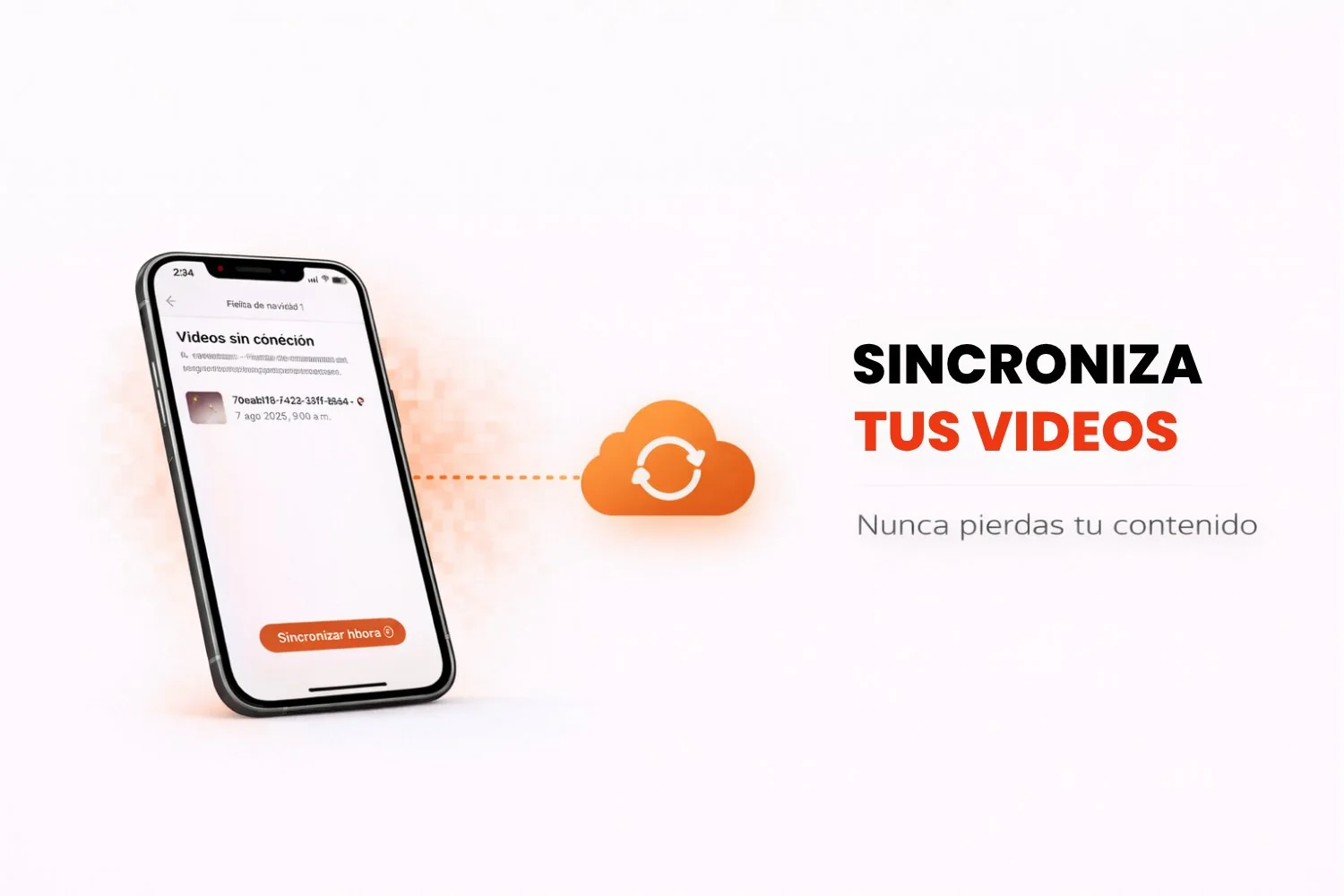
Ever recorded videos in Snap360 and found they never synced because of a connection problem? Do not worry, there is a fix. One of the handiest features of this 360 photo booth app is the Local Gallery, which lets you find and sync videos you recorded with no internet connection.
In this article we walk through how offline videos work, how to find them and what to do to sync them properly.
What Are Offline Videos?
Offline videos are the ones you recorded in Snap360 that have not synced yet, either to the cloud or to your device gallery. This can happen because of:
- No internet connection.
- Temporary sync problems caused by network drops.
Those 360 videos are stored safely in the Local Gallery inside the 360 photo booth app, so nothing gets lost while you sort out the connection. The feature lets you capture memories without needing a stable connection and sync them the moment you are back on a network.
How to Find Your Unsynced Videos
Follow these steps to find and preview your unsynced videos:
- Open Snap360 and go to the event where you recorded the videos.
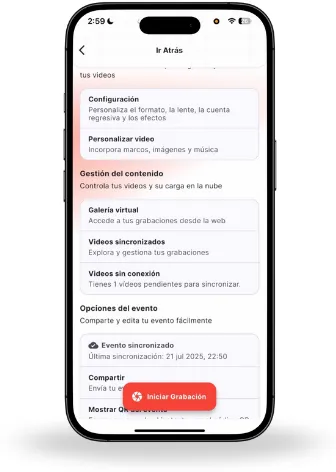
- Find the "Storage and sync" option and then "Local gallery: unsynced videos", where every unsynced video is waiting.
- Once you are in Local gallery: unsynced videos, you will see the pending videos. Select the one you want to sync.
How to Sync Your Offline Videos
Once you have found the videos, it is time to sync them. Here is how to do it right:
- From Local gallery: unsynced videos, select the videos you want to sync.
- Tap "Sync videos" to start the process.
- Make sure you:
- Keep the photo booth app open while it syncs.
- Connect to a stable Wi-Fi network so nothing gets interrupted.
- Syncing can take a few minutes depending on the size of the videos and your internet speed.
Note: Once syncing is done, your videos will be available in the cloud gallery or in the local gallery on your device.
Tips for a Clean Sync
- Stable connection: Use a Wi-Fi network you trust so the process runs smoothly.
- Do not close the app: Keep Snap360 open while the videos are syncing.
- Check the result: When it finishes, open the Local gallery: synced videos section to confirm everything went through.
What if the Videos Will Not Sync?
If you run into trouble while syncing, try these fixes:
- Restart Snap360: Close the app and open it again to retry.
- Check the connection: Make sure your device is on a stable Wi-Fi network.
- Restart the device: This often clears up temporary sync problems.
- Contact Support: If it keeps happening, our support team will be glad to help.
Video syncing in Snap360 is a key feature that makes sure you never lose important content. With the Local Gallery, you can record videos offline, preview them and sync them when you are ready.