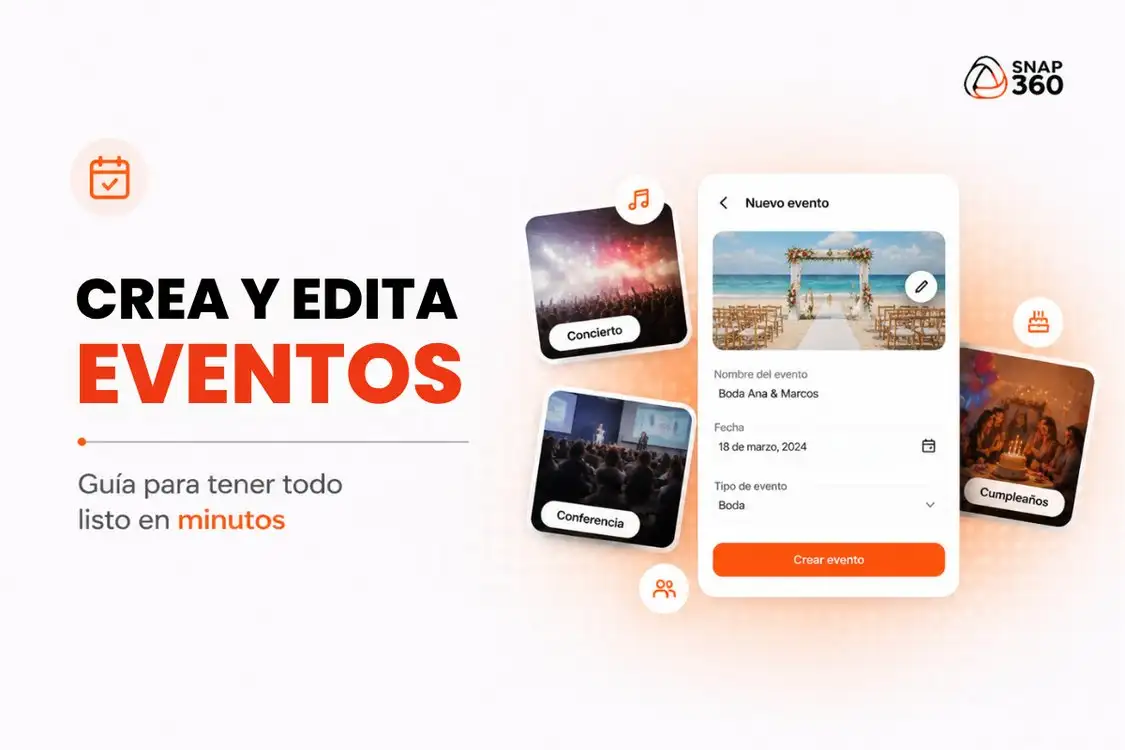
Snap360 gives you a straightforward way to create and edit events fast. Weddings, parties, launches or corporate events, this 360 photo booth app for iOS and Android lets you handle every detail from the device you prefer.
Here is how to create and edit events step by step, so everything is ready before you hit record.
🎭 Creating an Event in Snap360
1. Open the App
Launch the 360 photo booth app on your device.
2. Go to the App Home Screen
This is where all your events live. You can also start a new one from here.
3. Create Your Event
Find the "Create Event" button. Tapping it opens a screen where you fill in the following fields:
- Event name: so you can spot it at a glance.
- Date: worth setting, it keeps everything organized.
- Time: optional.
- Description: optional, you can add details such as "Wedding in Milan".
- Event category: wedding, birthday, christening or corporate event (optional).
- Thumbnail: optional, but recommended so you can identify the event visually.
Once those details are in, your event is ready to be customized.
🖌️ Customize and Set Up Your Event
Event created? Time to customize and configure it. To do that, first tap on your event.
1. Open Settings ⚙️
Go into your event and tap the gear icon ⚙️
2. Customize
From the "Visuals and Music" menu you can add everything you need to make the event yours:
- Intro and outro images
- Custom overlays
- Music
⚠️ Remember to save so everything syncs with your event.
3. Set Up the Camera and Formats
Here you can adjust:
- Camera lens
- Recording time
- Video speed
- Countdown length
- Flash
- Boomerang effect
Always save your changes so they sync with the event.
Snap360 is the 360 photo booth app built so anyone can create events without technical experience, keeping the flow simple and quick.
🧐 How Do I Edit My Event?
Editing an event is as easy as creating one. You can do it any time before you record.
1. Change the Name or Date
If you need to change details such as:
- Name
- Date
- Time
- Description
- Category
- Thumbnail
Just tap the (…) on the right side of the event. Make your changes and tap save.
2. Adjust the Look or the Format
If you need to change the visual or technical setup:
- Go into the event
- Tap the ⚙️ icon
- Pick the right menu:
- "Visuals and music" → for branding (overlays, music, images)
- "Camera and formats" → for technical settings (speed, camera, effects)
⚠️ Important:
Every change has to be saved. If you skip that, the event keeps the previous setup.
🎯 a Simple Flow for More Professional Events
Creating and editing events inside Snap360 lets you work with more order, speed and control. That matters when you run a photo booth app at real events, where every detail shapes the client experience.
A good setup does not just save you time, it also makes sure every 360 video comes out the way you expect.