When you build 360 events for all kinds of occasions, from weddings and birthdays to corporate events, you often need to repeat the same setup. But imagine being able to duplicate a whole event, with every setting and customization, instead of starting from scratch every time. Snap360, the photo booth app, now does exactly that.
The tool lets you duplicate an existing event and create an exact copy, which saves you time and effort because you no longer set everything up again for each similar event.
What Gets Copied When You Duplicate an Event in Snap360?
The Duplicate Event feature copies more than the event name. It brings over every setting and every customization file, so the new event has the same format and configuration as the original.
When you duplicate an event, these items are copied:
Video settings:
Format (vertical, square).
Lens (front or rear camera).
Recording time, video speed and other settings.
Customization files:
Start and end images.
Video overlays.
Music (the audio files are copied too).
Important: the duplicated event will be empty (no recorded videos), but it will have every setting and customization file ready so you can start recording right away.
Why Is Duplicating an Event Useful?
This feature is especially handy if you run similar events often. Whether you are working on several events with the same theme or repeating the same setup for different clients, duplicating an event lets you:
Save time: you will not set everything up from scratch for each new event.
Keep a consistent setup: settings, overlays, music and images are replicated automatically, which keeps your events consistent.
Work faster: duplicate past events and change only what each new occasion needs.
Where Is the Duplicate Event Option in Snap360?
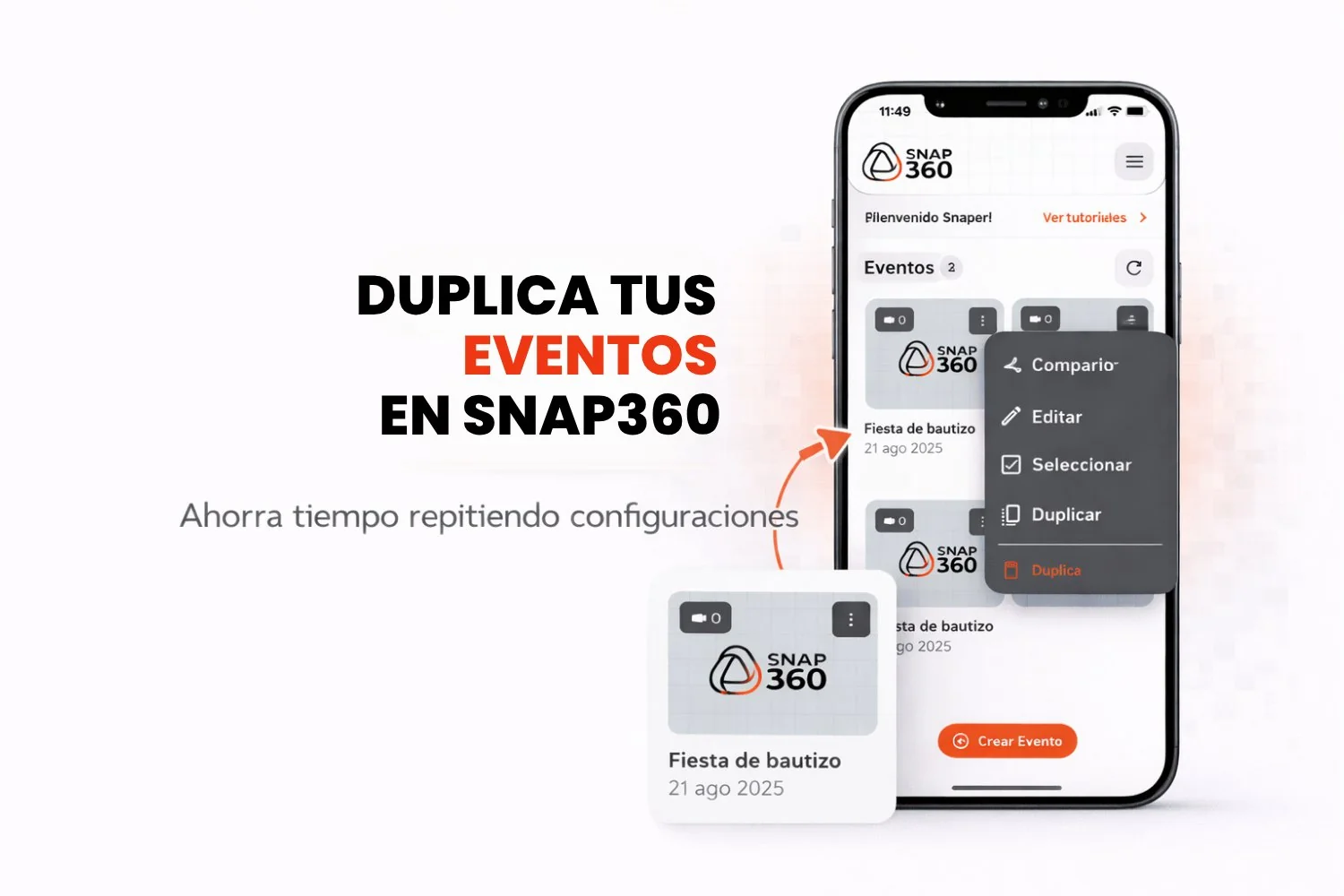
The duplicate event option is easy to find and use. Follow these steps to duplicate your next event in the photo booth app:
Open the app home screen: launch the Snap360.
Find the event you want to duplicate: browse your existing events until you reach the one you want to copy.
Tap the three dots (•••) in the top right corner of the event.
Select "Duplicate": the option to duplicate the selected event will appear.
Done: the app creates a new event called "Copy of [Event name]", which you can edit and use right away.
Conclusion
The Duplicate Event feature in Snap360 is a powerful tool that saves you time and effort when you create several events with similar setups. For weddings, parties or corporate events, you keep a consistent configuration and your customizations by replicating the settings and files from past events. Everything is ready to record in minutes.
If you do not have the 360 photo booth app yet, download it now and get this feature along with plenty of other useful tools for your 360 events.
Frequently Asked Questions
What Is Snap360?
Snap360 is a 360 photo booth app that captures and shares high quality 360 videos, ideal for events of every kind.
How Do I Duplicate an Event in Snap360?
To duplicate an event, open the app, select the event you want to copy, tap the three dots in the top right corner and select "Duplicate event". The new event is created with every setting and customization file ready to use.
Does the Duplicated Event Have Recorded Videos?
No, the duplicated event is an empty event, with no recorded videos, but with all the configuration and customization in place so you can start recording immediately.
Can I Modify the Duplicated Event?
Yes, you can change the duplicated event however you like. It copies the original setup, but you can adjust any detail before you start recording.