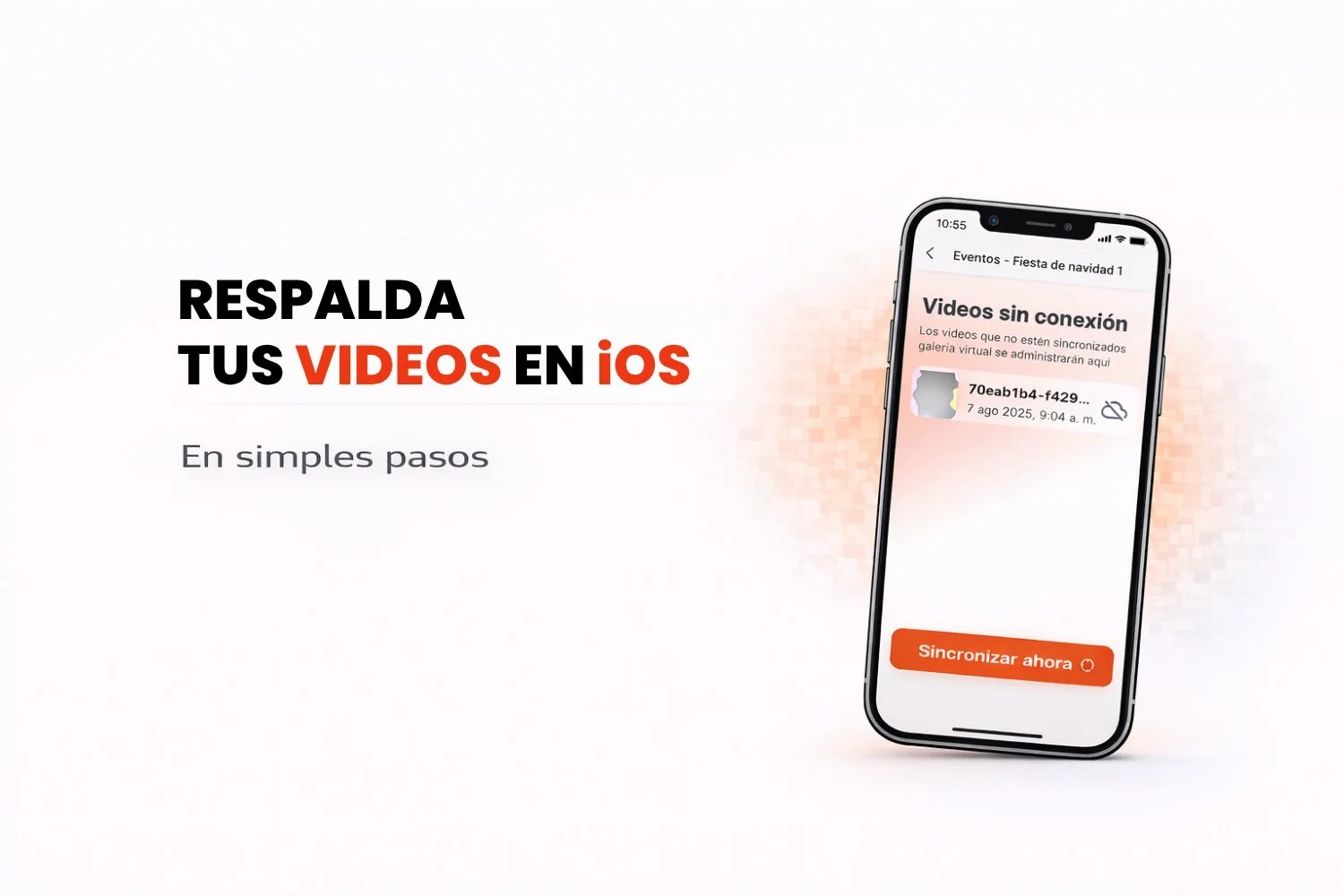
At Snap360 we want to make sure you get the best possible experience with our 360 photo booth app. One of the most important features is backing up the 360 videos you create in the app. For that to work properly, you need to give the app full access to your gallery on iOS.
Here is a simple step-by-step guide to enabling the permissions you need on iOS:
Step 1: Open the Settings on your iPhone
- On your device's home screen, find and open the Settings app (the gear icon).
Step 2: Find our app in the list
- Scroll down to "Apps" and find the app. If you downloaded our photo booth app, Snap360, it will show up with its name and icon.
- Tap the app name to open its settings.
Step 3: Set up access to your photos
- Inside the app settings, look for the Photos option and tap it.
- You will see several options:
- None: no access to your photos at all.
- Limited Access: access to specific photos only.
- Full Access: lets the app reach your entire gallery.
- Select Full Access so the app can back up every video and photo it generates automatically.
Step 4: Check the permissions
- Go back to the main Settings on your iPhone and open the Privacy & Security section.
- Tap Photos and make sure our app is set to Full Access.
Step 5: Enjoy the backup features
That is it. Our app now has full access to your gallery, which means it can:
- Automatically back up every video it generates.
Frequently asked questions
Is it safe to allow full access to my gallery?
Yes, our 360 photo booth app only uses these permissions to back up the content you create. We do not access or share your personal photos or videos.
Can I change the permissions later?
Of course, you can change the permissions at any time from your iPhone settings by following the same steps.
If you have any other questions, get in touch with our support team. Thanks for using our app and trusting us with your memories.